
Summary
ShowMgr recently upgraded its Scheduler layout and capabilities to enable users to manage your resource shifts directly in Scheduler. This article walks you through how to create a new shift assignment from the Scheduler, create a new shift assignment from multiple Resources, create a new shift assignment from a template, and modifying and deleting existing shift assignments.
- From the main left-hand navigation menu, navigate to Scheduler
- Change the Scheduler view to Resource List
- Select which Resource/s you would like to assign and then click and drag the date/time on the Scheduler
- Select Shift Assignment from the pop-up window to open up a separate Shift Assignment pop-up
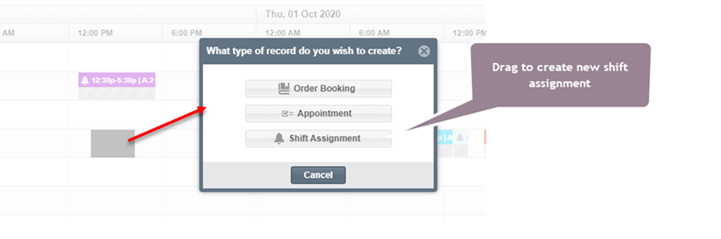
- Fill out all of the mandatory and optional fields such as shift, shift days, and shift weeks
- Click Submit to save. You should see your new shift assignment display on Scheduler
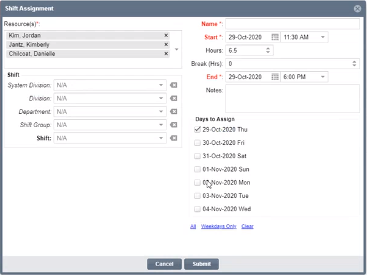
In the Element List view, click the checkboxes next to all of the Resources you would like to add to the new shift assignment.
Then click and drag a time allocation on the Scheduler next to any of those Resources. Click on Shift Assignment and then fill out all of the Shift Assignment information. You'll notice all of the Resources will be pre-populated in the pop-up.
Click Submit to save. You'll then notice that shift assignment shows up next to each Resource on the Scheduler.
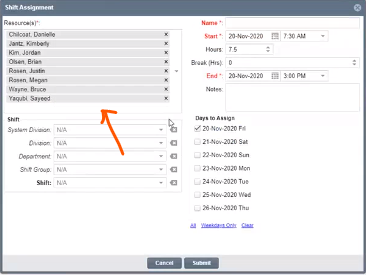
To bulk delete any shift assignments, just select the checkboxes next to the Resource/s and choose Delete Future Shifts from the footer.
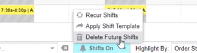
Previously it was impossible to add more than one shift to a Resource per day. Now however, you can add more than one shift e.g. regular shift and an OT shift. Just follow the steps above to add a new shift to the same day and when you're in the Resource List view, you'll see the additional shift next to the Resource.

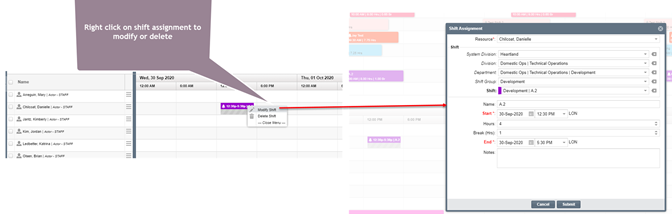
It's now possible to manually modify, clear, or delete shift assignments within Scheduler.
Just right-click the assignment and click Modify to change any times or information, Delete to remove the assignment, or Clear and then the days and weeks you would like to clear. For more information on clearing vs. deleting assignments see our article here.
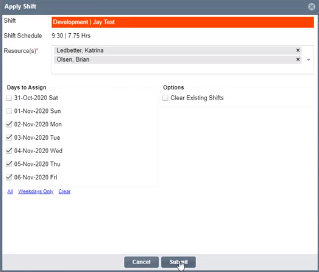
You can also manually drag one or more Resources onto existing shifts in Scheduler. Just click and drag the Resource/s directly from the bottom view onto the shift in the top view (if you're dragging multiple, just select their checkboxes first). The Apply Shift pop-up window will appear where you can confirm the addition of the Resource to the shift as well as any other information before clicking Submit to save.
Similarly, you can also drag a shift directly from one Resource to another.
Here are some other useful articles about shift management: