
Summary
If you're looking for some additional clarification on some of ShowMgr's frequently used terms, this article summarizes some of these terms and provides links to other articles that may be of interest
- Actuals
-
Actuals are records tracking the time accrued on a work effort. Actuals can hold the time work, costs, revenue, and additional fields (if required).
Actuals are associated to a single Booking assignment but can have a one to many relationships. This means that one Booking can have multiple Actuals.
See our article on adding actuals to Bookings (aka "Actualizing") for more information.
- Attribute
-
Attributes are fields/requested information that can be attributed to a specific Order, Element, etc. There are multiple types of Attributes: Text, Text Area, Select, Multi-Select, Checkbox.
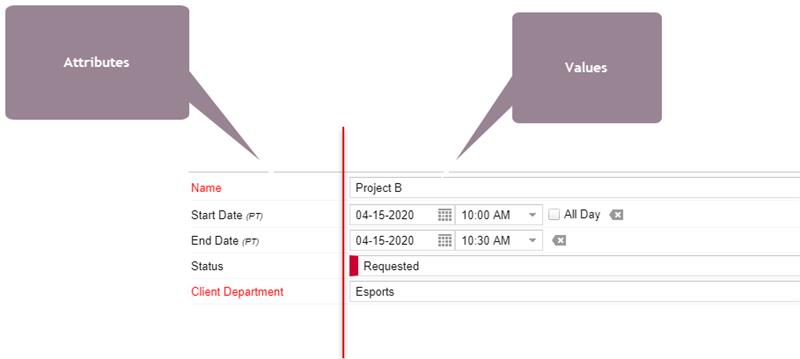
Attributes can be further broken down into user-defined attributes (UDF) and non-user defined attributes (SDF). UDFs are attributes that are created by the user and can be fully modified. SDFs are attributes inherent to the order system and have specific functionality tied to them. For example, a specific email may be distributed when the order status is changed. See our article on creating and managing Attributes for more information.
- Booking
-
A Booking is a specific or generic Element that is scheduled (or booked), usually by date, to an Order. A Booking can hold the time, cost, revenue, and additional fields (if required).
Bookings typically have a start and an end date to denote when the work is scheduled. If the Booking does not have dates, then the assignment will not be plotted on calendars. That said, element bookings/assignments can have a duration that is longer than an Order. The system does not confine Bookings within the Order's time ranges.
Bookings track progression using status transitions, like Orders however the statuses on a Booking are NOT dependent on the statuses of an Order. Bookings without a status will not show up in a crew member’s work queue. This feature allows schedulers to plan out the work assignment schedules without preemptively notifying the end-user or an incorrect user.
An Unassigned Booking displays all scheduled generic Elements.
- Budget
- Budgets offer a location to build out a financial worksheet without having to commit Elements as Bookings assignments. Including an Element on a budget worksheet will not display the record on any calendars or work queues. Elements on a Budget will only be made into a Booking if an Order exists to place the Element. A Budget is not a prerequisite for creating a Project.
- See our article on creating a new budget for more information.
- Contacts
-
Inside an Order you will be able to see a section called Contacts. These are individuals and Resources that are affiliated with that Resource or Booking and are not necessarily booked on the Order. These individuals will receive notifications about the Order. Order Alerts can be further managed in the Admin > Communications section of ShowMgr.
- Costs
-
Costs are the actual costs to do the job, like hard-costs. As opposed to revenue, which is what you would charge to do the job.
- Department Appointment
-
A department appointment is an appointment for another user that is in your same department. It is the same as your appointment orders, it just happens to be an appointment order for another Resource in your department.
- Elements
-
ShowMgr is based on the concepts of Elements. Elements are the individual items that are added, costed, and eventually booked on an Order. Elements are considered the DNA of the Order.
Elements are broken into four distinct categories: Resources, Assets, Facilities, and Services.
Resources are anything with a heartbeat. This is anyone who can perform work. Resources can be your full-time staff, part-time staff, freelancers, interns, vendor contacts, or customer contacts. Basically, anyone needing an assignment to be tracked. Here are some common questions about Resources.
Assets are typically categorized as the equipment used on the Order. These are the cameras, computers, boom mics, microphones, etc. Assets can either be equipment that is barcoded or equipment that comes from a bin. Both owned and rented equipment can be tracked in the software. It is also common for digital assets such as software licenses or media files to be tracked as an asset as well. Here is a helpful article on adding and managing Asset SKUs.
Facilities are all occupiable spaces. These are commonly a conference room, a studio, a stage, or an edit bay. Common spaces like hallways, bathrooms, transmission lines, or elevators and even mobile locations such as a venue, a mobile unit/truck, or an address can also be tracked as facilities. Here is a helpful article on viewing and modifying facilities.
Services are all items that are not considered to be a person, a place, or a thing. Commonly, outsourced work is tracked as a service. You will find security or craft services to be categorized this way.
Elements can be also categorized as either a generic or specific. Generic elements are the parent of specific elements, this is a way to group a set of elements together by a common theme. This allows users to plan without committing to a specific individual or room but build the list of assignments needing completion at some point. In the case of Resources, the generic element would be a person’s position, in the case of Facilities, the generic element would be a facility type, and in the case of Assets, the generic element would be its SKU.
Elements can be scheduled individually or can be grouped together for easier, faster scheduling into Packages or Bundles.
- Milestone
-
A milestone is a single point in time. It can be used as a marker in time and can be added to any Project or Order.
- Phase
-
A phase is a date range. It can be used to measure a time duration and can be added to any Project or Order.
- Order (or Work Order)
-
An Order (aka Work Order), is a request to provide a service or body of work. In ShowMgr, the Order is a record that holds Bookings and Elements and tracks an effort to complete a given task or a series of tasks. Examples include building a storyboard, editing tape, recording a voiceover, and countless more.
Orders often, but not always, contain the specific assignments required to complete the request such as the Who, What, and Where. People, places, equipment and miscellaneous items can be tracked with notes specifying everyone or everything’s purpose. Rates can also be associated to all the items to track the costs, or spend, as well as the revenue, or net profit, of the effort.
The Order details will often contain information about the Order’s contacts (stakeholders), documents and materials, phases and milestones, and relevant financial tools for creating purchase orders and more.
Users, depending on their role, add or (book) the Elements to that Order (Scheduling/Resourcing), track costs and rates associated to those specific items (Budgeting), and allow users to review the financials for that effort (Reviewing).
Orders can be viewed in either in a list on a grid, as a block on a Gantt timeline (Scheduler), or as a block on a Gregorian calendar. They are tracked for progression using status transitions. Throughout the lifecycle of an Order email alert, browser notifications, and push notifications can be delivered posting notes, updates, or unique information.
Here are some ways to view Orders in ShowMgr:
- Grid View: Access via Projects or Orders from the main left hand navigation menu

- Gantt or Calendar View (Access via the Scheduler): This choice will provide users a view of Orders by filtered search in either "Gantt Chart" or familiar Gregorian, "Monthly Calendar" view
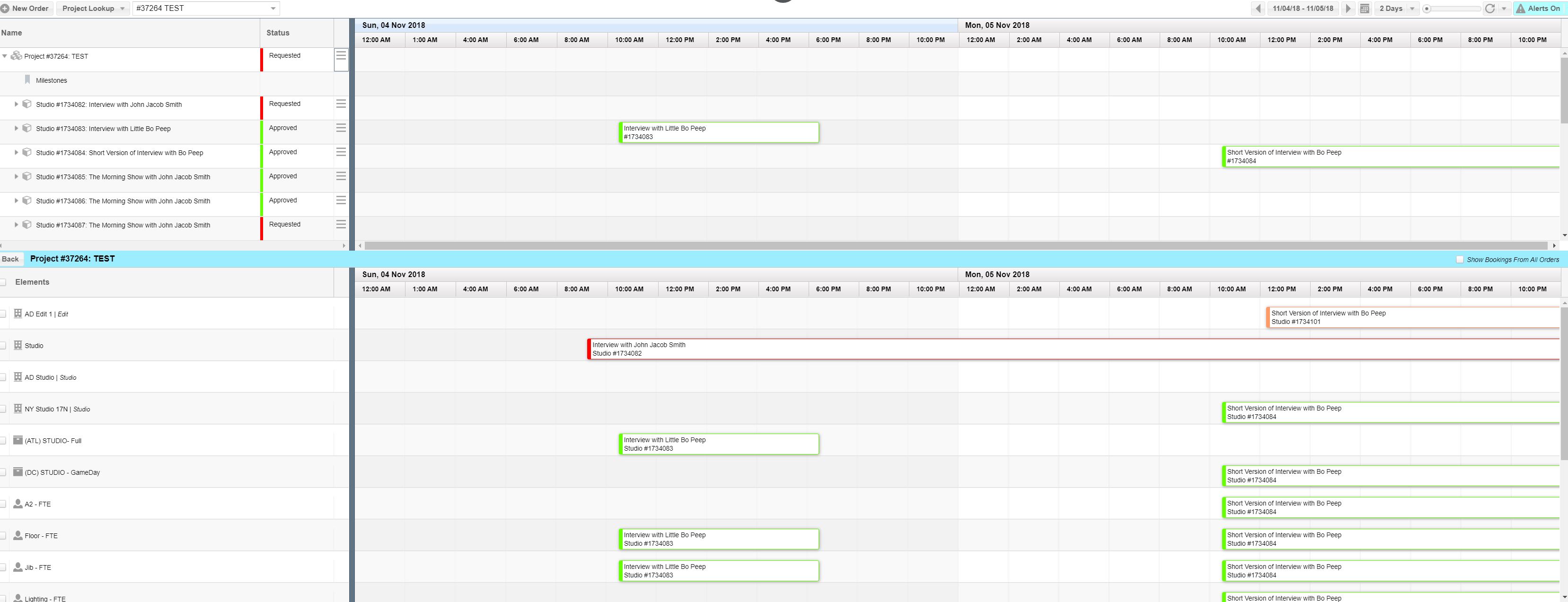
- Tracking the Order Status: Work Order progress can be tracked by manually choosing Status from a menu or in specified cases can be preconfigured
- Notifications and Alerts: are provided as requested and configured throughout the life cycle of an Order with the use of email, banners and push notifications (badges)
- Grid View: Access via Projects or Orders from the main left hand navigation menu
- Order Attribute
- Order Attributes are fields that can be attributed to a specific Order. Here is a useful article on adding and managing Order Attributes.
- Order Class
-
Order Classes help you break up and define the types of work your organization does. For example, the information you need to know about your Studio Orders is different from Edit Orders, which is different from Appointment Orders or Post Production Orders. When a user creates a new Order, they will need to choose an Order Class that determines what fields they see in order to complete the objective of that Order.
Each Order Class has its own fields, statuses and contacts particular to that classification of work e.g. class specific field types, status transitions, resources, or vendors. Order Classes are limitless and changeable, so you can set up as many as you need and can always make changes to them later. However we caution users not to create too many to create confusion and redundancy. The templates ShowMgr provides are common layouts to use as a starting point.
Order Classes have a parent-child relationship which means that Orders can build trees which can go infinitely deep.
Order Classes are managed via the Admin > Order Admin section of ShowMgr. See our article Adding and Modifying Order Classes for more information.
- Package
- Elements can be scheduled individually or can be grouped together for easier, faster scheduling into Packages. Packages can include one or many elements. Multiple Packages can then be placed into a Bundle for one click scheduling. See our article on creating Packages for more information.
- Project
- A Project is a unique type of Order that can house other Orders as well as be created in "Project Request". Projects can have Bookings as well as Phases and Milestones assigned to them. A Budget is not a prerequisite for creating a Project.
- See our article on creating a Project for more information.
- Rate Card
- A Rate Card is a list of added Rates that can be selected on an Order/Project/Budget to autopopulate said-added Rates. See our article on creating a new rate card for more information.
- Scheduler
-
The Scheduler is a Gantt calendar, otherwise known as the timeline, which displays Bookings for the duration of each assignment.
In the Scheduler, Elements are listed along the vertical axis while the timeline is displayed along the horizontal axis. Any Booking assignments are viewed as blocks stretching the length of each assignment’s duration.
The Scheduler view can be customized by using filters.
- Shifts - Shift Assignments - Shift Templates
- There are a few different objects we are lump together when we say "Shift". We have the shift, shift assignment and the shift assignment template. Shift assignment is primarily run through Scheduler (a new feature). There are also sections off the navigation to manage shifts and manage templates.
- Sub-Orders
- Sub-orders are tasks that hold Bookings and Elements, but do not have a rate of their own. See our article on creating sub-orders more information.
- Work groups
- Work groups are not system divisions. Workgroups are essentially positions that a user belongs to. If an order is booked to a generic "Editor" but has not yet been assigned to a person, then it can be opened up to all "Editors" to see in their portal. Essentially all editors are part of the "Editor" workgroup. They can search for all orders assigned to "Editors" and then accept the job, at which point they will become assigned on the booking and open it up for entering actuals.
- You can configure what generic bookings get posted out to the workgroup within the admin settings.
- Worksheet
-
The Worksheet is the location in an Order to view all Bookings in a list.
Depending on user permissions some users may consider this to also be the financial worksheet, where they can calculate cost, revenue and margins. Other users may see the Worksheet as the location to add, assign, swap, or remove Bookings. While other users may see this as a read-only screen where they are unable to make any modifications.
Is there a definition missing?
Send us a message and we'll be sure to add it in!