Summary
In ShowMgr, it's easy to add and view facilities and venues. Facilities, an Element in ShowMgr, are spaces that can be occupied, such as a stage or an office, and can be assigned to an Order while Facility Types are categories of Facilities. This article walks through the basic components: viewing and modifying facilities and facility types.
Viewing Facility Details
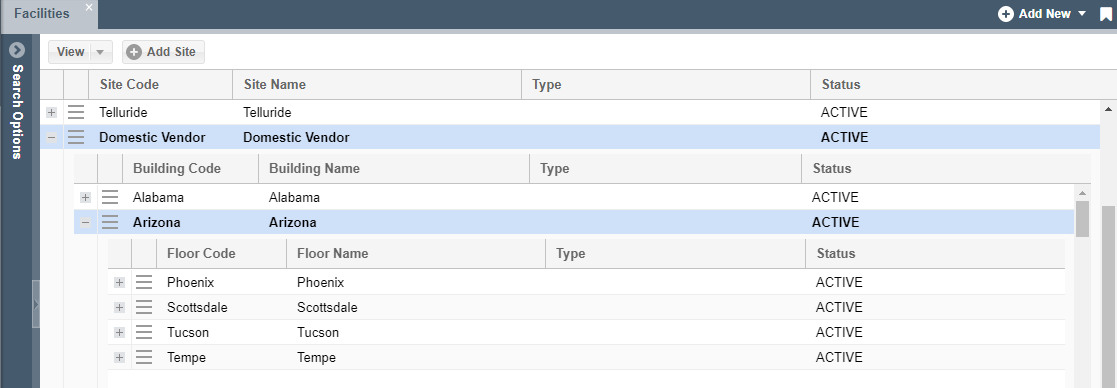
- Navigate to Facilities > Facilities in the left hand navigation menu to see a list of sites that have been set up in ShowMgr
- Use the View button
 to display the Facilities as a list or as a tree (by site)
- If sorted as a tree, click the Plus
 adjacent to a site to view the Facilities that have been set up for that site
- If sorted as a tree, click the Plus
- From this Facility Administration page you can:
- Add a new site: Click the Add Site button
 and fill out all of the required and relevant optional fields (Note: Your view will need to be set to Tree)
 - Modify a site, building, or room code or name: Click the hamburger button
 and select Modify from the drop-down menu
 - Add a building, floor, or room to a site: Click the hamburger button next to the site/building/floor and select +Add Building/Floor from the drop-down menu depending on your needs
- Set the system rate card value for the Facility: Click the hamburger button next to the Facility and select Rate Card from the drop-down menu
- Delete a Site/Building/Floor/Facility: Click the hamburger button next to the item, and select Delete from the drop-down menu
- Add a new site: Click the Add Site button
Viewing and Modifying Facility Types
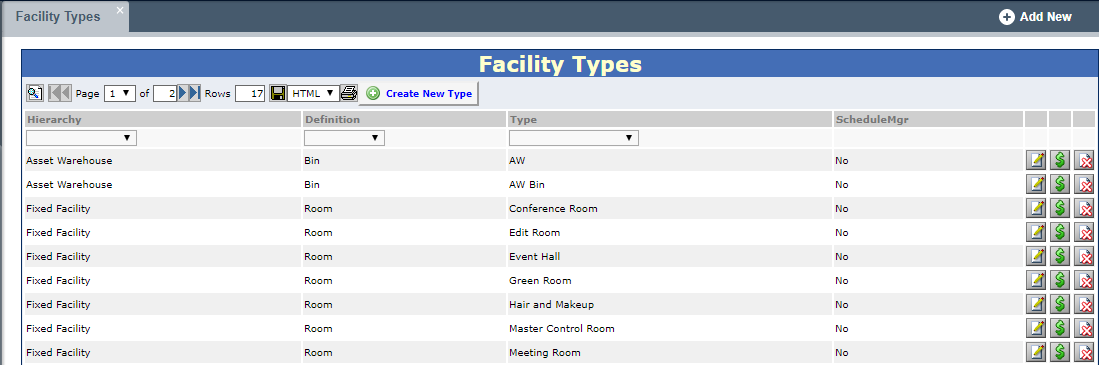
Facility types can be created in ShowMgr to help organize your facilities. For example, you might want to have a fixed facility type for fixed locations, a mobile facility type for mobile units, and an asset warehouse type for facilities where assets are stored. To view facility types in ShowMgr:
- Navigate to Facilities > Facility Types in the left hand navigation menu to see the facility types that are set up in ShowMgr
- Once in the Facility Type page you can:
- Add a new facility type: Click the Create New Type
 button
 - Modify a facility type: Click the Modify
 icon
icon - Modify the facility type rate: Click the Modify Type Rates
 icon
icon - Delete a facility type: Click the Delete
 icon
icon
- Add a new facility type: Click the Create New Type
Modifying Facility Names
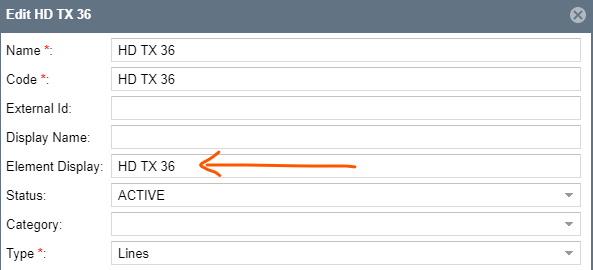
When modifying Facilities (via Facilities > Facilities > Modify), make sure you also change the Element Display value in the Facility settings. This field captures the text that will show up in grids and the Scheduler.