Summary
Sub-orders are Orders that can be created within an Order as an additional work order item if an Order allows for a Sub-order option. This article walks you through the steps for creating Sub-orders via the Order driver tab, modifying Sub-orders available on an Order Class, how to find your Sub-orders, and also how to cascade information from parent Orders.
- From the main left-hand navigation menu, select Orders. From the Order grid, double-click the Order you would like to add a Sub-order to in order to open the Order details page
- Click the Orders driver tab
 Note: If the driver tab is not visible, it means the Order Class chosen does not have a Sub-order option. See the next section if you want to allow a Sub-order to be added to that specific Order Class
 - Click the +New button (Note: New Sub-order types available are based on the Order type that it cascades from)
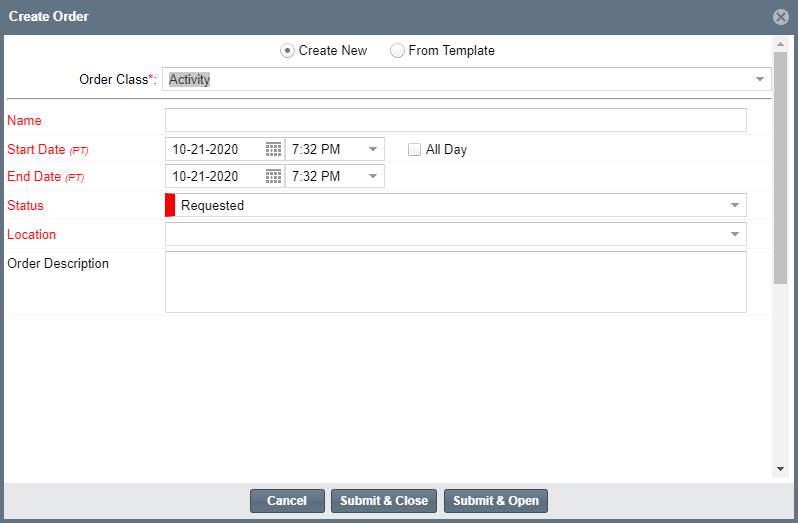
- At the top of the Create Order window, select Create New or From Template
- Fill out the form and click Submit & Close when finished to save
- The Sub-order will now be visible on the Order driver tab
- From the Order grid, navigate to the parent Order and open the Orders driver tab Note: If the driver tab is not visible, it means the Order Class chosen does not have a Sub-order option
- Select the Sub-order you would like to add the new Sub-order to
- Click the +New button > Add Sub-Order To Selected and then Add Single or Add Multiple depending on the number of Sub-orders you would like to add (Note: New Sub-order types are based on the Order type that it cascades from)
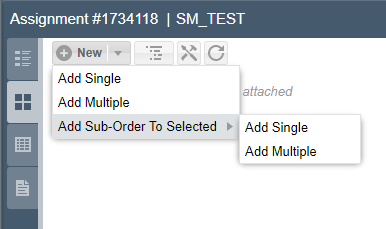
- Fill out all of the required information. Every Sub-order you add here will be added to each of the Orders you have selected on the Orders page. For example, if you have 2 Orders selected and add 4 Sub-orders, you'll have 8 new Sub-orders.
- Click Submit & Close when finished to save. The Sub-order will be visible on the Order driver tab.
Only certain Order types will be available as Sub-orders on an Order Class. To modify which Sub-orders are available on an Order Class, you'll need to modify the Order Class in the Admin section first.
- From the main left-hand navigation menu, click on Admin > Order Admin > Order Classes

- Click on the Modify
 button next to the Order Class to open up the Modify Class screen. Here you can add/delete the desired Sub-orders in the Sub-order section towards the bottom of the window and click Submit to save
For more information on creating and modifying Order Classes, please see our article Adding and Modifying Order Classes
In order to cascade changes on a parent down to a Sub-order you will need to either use the Cascade Values or the Tools features. These tools are designed to layer in more structure to the decision to prevent making one change that impacts potentially hundreds of Orders.
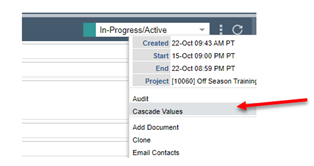
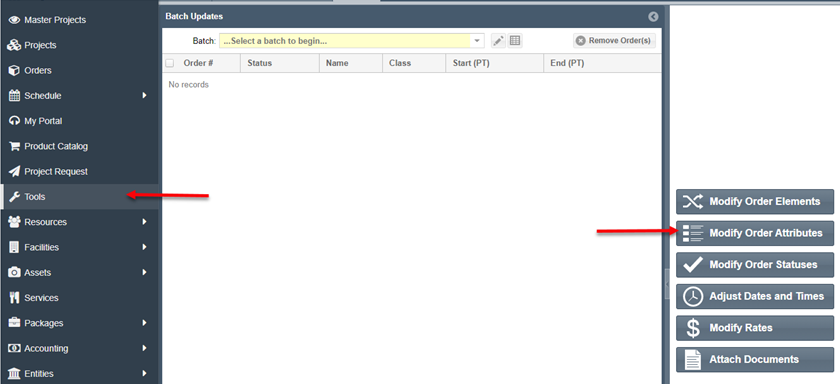
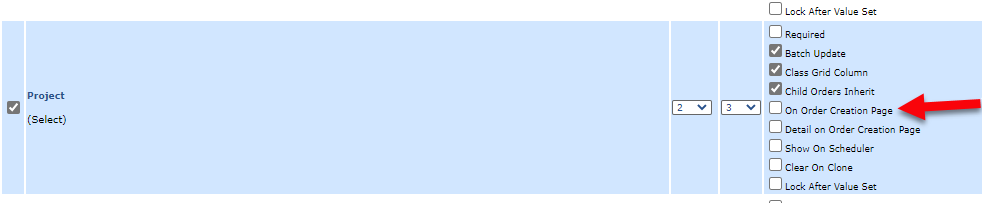
Note: If your Parent Order and Project information is not cascading to the Sub-Order even though Child Order is selected everywhere it isn't a default setting, you will need to check your Attribute Settings. In the case of the Project Attribute, make sure the "On Order Creation Page" checkbox is selected. When this is turned on, you'll notice the Project field will be automatically populated on the Sub-order.
From a Project level, you can view all Orders including the tiered hierarchy of Sub-orders. This functionality gives the user access to drill down to a particular level and review data that is important to them. Basically from a project level the user would be able to find all notes entered at any level below.
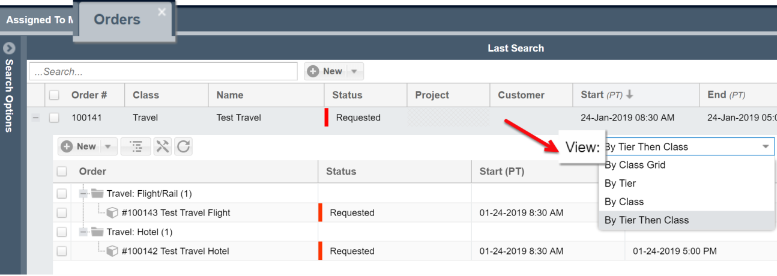
Therefore, once the Sub-orders are created, the Orders grid will display the "Tree" of the Order to Sub-order based on the preference of the user.
You can change the view through the filter panel on the right hand side (Note: The example below is filtered by By Tier then Class)