
Summary
In ShowMgr, it's possible to create a new Project from various different parts of the system. In some cases, you'll already have a Budget in the system and need to create a Project directly from that Budget. This article will show you how.
Creating a Project from a Budget
- From the main left-hand navigation menu, click on Budgets (or Bid, depending on your instance)
- Search for and select the Budget / Bid you want to create a Project from
- Click on the Budget / Bid Worksheet
- Select all of the check-boxes next to the Orders you want to add to the Project
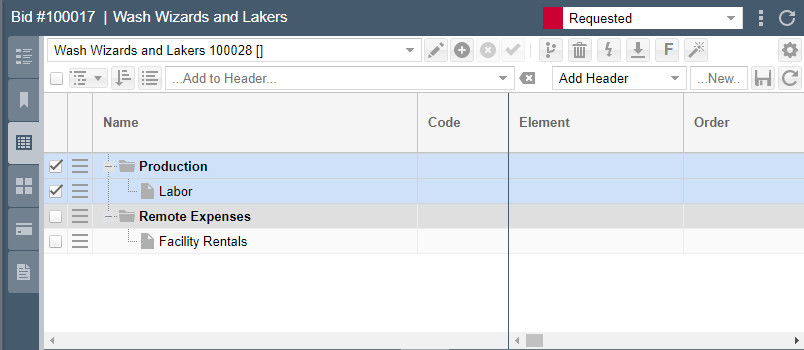
- Click on the sandwich icon
 and select Create Project
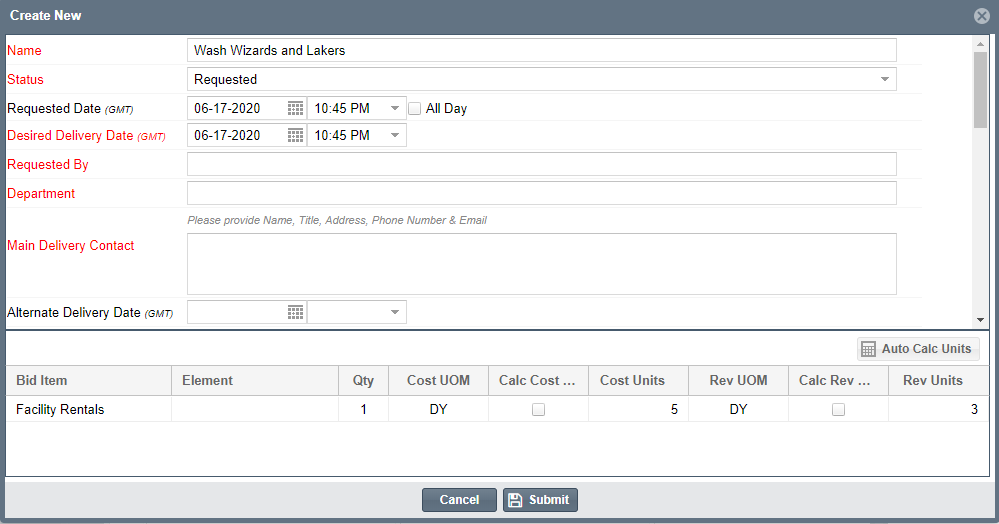
- Modify any of the required fields and click Submit to save and close
- You can verify your new Project has been loaded into the system by clicking on Projects in the left-hand navigation menu and searching for your Project
There may be times you want to create a Budget or Bid from a Project. While you can assign a Project to a Budget, you cannot create a Budget from a Project through the Project itself. Instead you need to create the Project and then create the Budget separately and then assign the Project to the Budget using the Budget attribute in the Project Details page. Note: If the Budget attribute is not enabled for Project, use Order Admin to enable it.