
Summary
ShowMgr's Order Grid provides a snapshot of Order information in a list that can be dynamically set up through user preferences. The Order Grid allows users to view booked Elements, Contacts, Dates, and other specific Order Data in an at a glance view. Configurable search settings can also allow users to only see the Orders and information desired. This article walks you through the layout of the Order Grid as well as ways to customize its appearance, your searches, and more
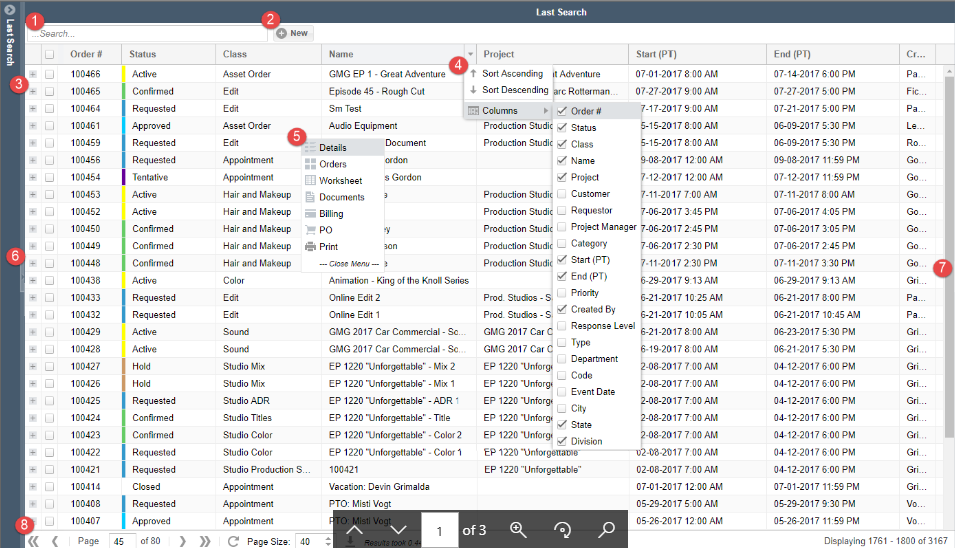
- Search specific Orders by Name or Number
- Create new Orders from the (+) New icon
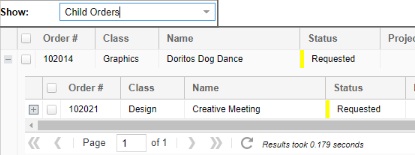
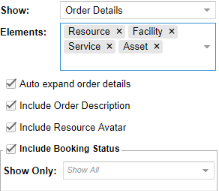
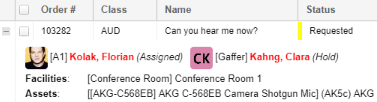
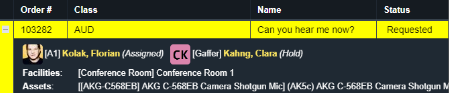
- Expand Orders to view either Child Orders or additional details
- Sort or configure columns from the selected view
- Double-click a line item to open the Order to one of the Order Tabs or right-click an Order line item to set a Default Tab to open when double-clicking an Order
- Open the Order Grid Search Parameters by single selecting the left wing
- Open the Order Grid Action Settings by single selecting the right wing
- The Bottom Toolbar allows users to change the page, refresh the current page, change the number of Orders displayed, export the grid to Excel
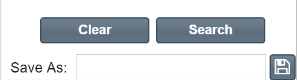
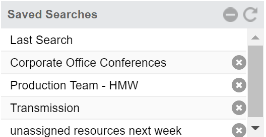
To load a saved search, double-click the search name found in the upper section of the left wing under Saved Searches
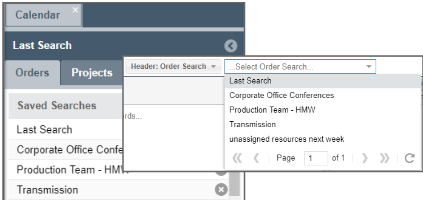
You can also use the same Saved Searches to find Order searches in the Calendar of the Gantt Scheduler
- Views are the configuration of the headers displayed across the Order grid. The headers can be based on the Attributes and Contacts listed in any Order Class or Project. To set or create a View, click on the right wing and expand the section with the title Layout
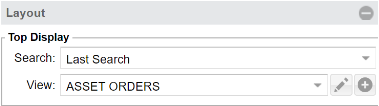
- Use the dropdown arrow to toggle between Views to update the grid with the pre-configured columns. You can also further customize your Views by clicking on the pencil or plus icons to open a new window. Here are some examples of customization options:
- Re-rank the attributes in the selected columns by dragging the attributes into a different order
- Edit the column names on the Grid by selecting the value
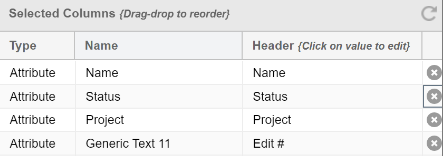
- Name and add security
- Globalize the View
- Share a View between a combination of access levels and system divisions (Admin only)

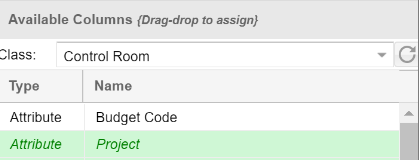
- You can also configure a View by selecting an Order Class. This will populate the right wing with the attribute fields and contacts. Fields that have already been configured in the View will be highlighted in green. You can also use multiple Order Class attributes together to create a View
For more information on configuring your Order grid layout, please see our article Configuring Project and Order Grid Display (Views and Customizations)
- Drag and drop each column to a position that best suits your need
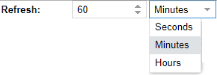
- Auto-refresh the Grid with the latest Orders and changes down to the second, minute, or hour when in presentation mode
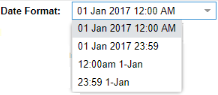
- Modify the date formatting for different standards and reporting
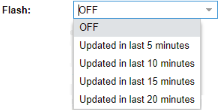
- View Orders whose details have recently changed with the Flash feature. When turned on, any Order that has changed in the last 5, 10, 15, or 20 minutes will flash repeatedly
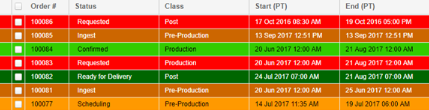
- Additional tools include: changing page off refresh, minimizing the paging toolbars, and highlights order rows based on the color of the Order Status
For more information on configuring your Order grid layout, please see our article Configuring Project and Order Grid Display (Views and Customizations)
Order Alerts can be further managed in the Admin > Communications section of ShowMgr
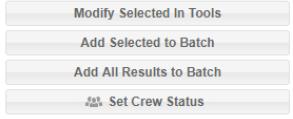
- Group two or more Orders together into batches
- Modify a Group's details, dates, statuses, booking rates, or documents
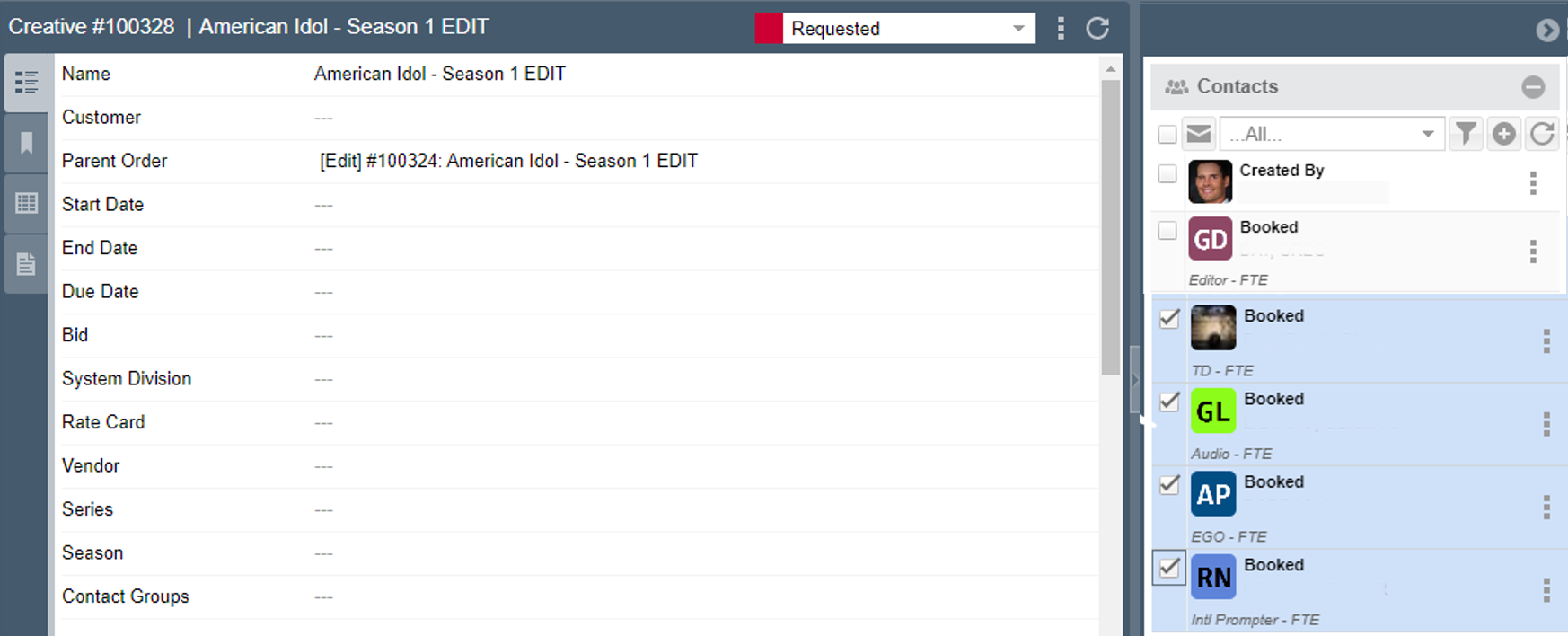
- Adjust the booking status of an Order's Resources (via the Set Crew Status Tool)
Here are a couple of useful articles on using Tools: