
Summary
ShowMgr has a suite of tools that can be used to quickly and easily modify Order attributes, statuses, dates/times, Elements, rates, and more. This article walks through how to use these tools to delete orders and/or modify order statuses in bulk
Using Tools to Make Bulk Updates to Order Statuses
- In ShowMgr's main left-hand navigation menu, select Orders to open the Orders Grid
- Select the check-boxes of the Orders you would like to have in a batch
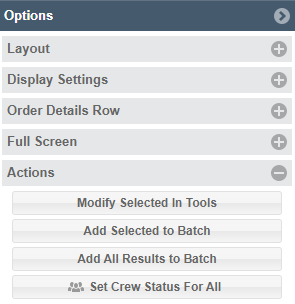
- On the right-hand Options menu, select Actions and select one of the following options:
- Modify Selected in Tools to directly access the Tools to modify your selected Orders
- Add Selected to Batch to add all of the selected Orders to a batch which can be selected in the future for bulk updates with the Tools
- Add all Results to Batch to add all of the Orders from your search to a batch which can be selected in the future for bulk updates with the Tools
- If you selected Modify Selected Tools, you'll be taken directly to the Tools page. If not, select the Tools page in the right-hand navigation menu and select your newly made batch of Orders from the batch drop-down menu at the top of the screen

- Select the Modify Order Statuses button
 from the Tools menu on the right-hand side of the window
 - Add a new status for each Order in the Order new status column. If you make an error, just select the delete icon
 next to the change to remove your change/s
 - Select Preview to verify and process bulk updates