
Summary
Do you have a suggestion on how we can improve the ShowMgr web or mobile platform? Maybe it's a page's layout, an option on a drop-down menu, or a way to sync or link two sections... whatever the idea, we'd love to hear it. We've created a Community section in our Help Center where you can submit enhancements, read and vote on other enhancements, and brainstorm ideas. This article walks you through how to submit an enhancement and interact with this section of our Help Center.
Submitting an enhancement or feature request
- Log into the ShowMgr Help Center
- From the Help Center home page either click on the Bright Ideas tile or the Community link at the top right hand menu bar to open up our Community section. Here you can search for existing posts and comments, submit a new post, vote on suggested features with the Vote buttons, and make comments on individual posts
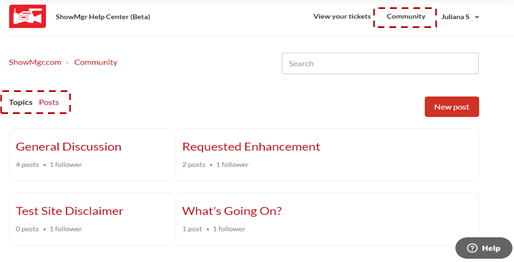
- Select Request a Feature or an Enhancement
- To submit a new post (e.g. feature request, feedback on an existing feature) click on New Post
- Enter a Title for your post and any details of the suggestion or feedback. Here are some general guidelines:
-
- Use clear and consistent language
- Provide any step-by-step use cases to describe the business need and/or value
- Tag any individuals with an @mention so the user is emailed and automatically signed up to follow the post
- Include any relevant images or screenshots
-
- Select a Topic for the post from the drop-down menu
- Click Submit to post
Commenting and voting on feature requests and enhancements
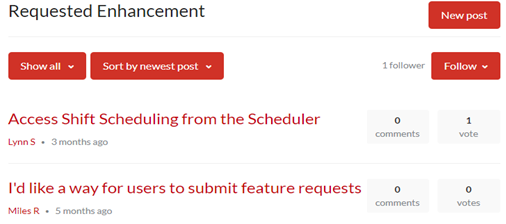
- From the Help Center Community, select Request a Feature or an Enhancement
- Scroll through the list of current suggestions. If there is a suggested feature or enhancement that interests you, click on it to open up more details.
- Here you can comment on the feature using the Comments field at the bottom of the post, or you can also vote on a feature by using the vote arrows to the right of the feature title. You can also select the Follow button to be emailed about any updates to that particular feature request. Note: You will need to be signed into the Help Center in order to make comments. Please read this article if you need help signing in.