Summary
In ShowMgr it's possible to check in and out Assets to add to an Order. While it is not necessary to check out an Asset for it to be attached to an Order, checking out an Asset will change the status of the Asset booking as well as the Asset’s status within Showmgr so that it can reflect if the Asset is in-stock/out-of-stock. This article walks through the basic steps logging in, navigating to check in/out, entering/selecting an Order, scanning the barcode to fill the Order, and more.
Checking OUT an Asset
- From the main left-hand navigation menu, select Orders to open up the main Order grid
- Select or create an Order from the Order Grid
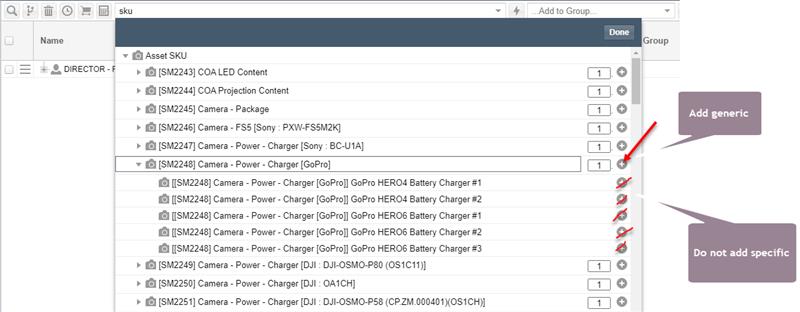
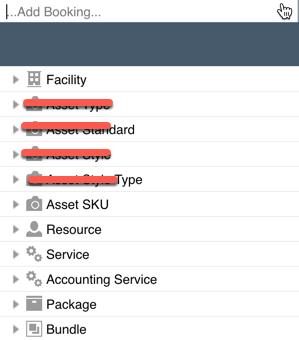
- In the Order Worksheet, assign a Generic Asset to the Order via Asset SKU (note: Assets added through Type, Standard, Style, and Style Type cannot be used with Check-In/Out)
- Make a note of the Order # so you can use it to search later
- Then from the main left-hand navigation menu, select Assets > Check In/Out. This is where you will check out the Specific Asset to replace the Generic Asset you booked on the Order
- Using the top-left dropdown, select the Order that you just created or assigned an Asset to (searchable by Order #)
- Enter the barcode/SKU of a Specific Asset into the yellow Scan field
 with a barcode scanner or by manually typing in the barcode. This does an automatic Element Swap by swapping the Generic Asset for a Specific Asset and fills the Booking
- Whether your scanner loads the barcode and submits it automatically or you enter the barcode manually and hit enter, you should hear a sound if the match is found and acted upon. Your grid above should also show a successful scan
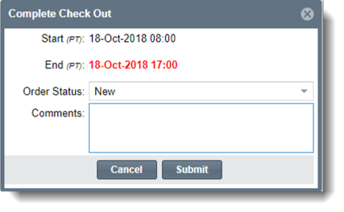
- Add any comments to the Complete Check Out popup and select Submit to save
- Once entered, the Asset will be set as Operational in the Assets > Manage Assets grid and the Booking Status will show as Filled in the Order Worksheet
Checking IN an Asset
- From the main left-hand navigation menu, select Assets > Check In/Out
- Select the Check In tab at the top of the grid
- Enter the barcode/SKU of the Asset to return to the listed Asset Bookings
- Returned Assets will show as Returned in the worksheet and show as In-Stock in the Assets > Manage Assets grid
You can also manually check the Asset IN or OUT via the Modify Asset page.

Notes on Barcodes and Scanning Items
- Barcodes must be in a standard barcode format. At this stage QR codes do not work with ShowMgr
- An Asset barcode is the individual Asset’s barcode that denotes that specific item. Kits or collections of multiple Assets, are considered Packages, however the system does not allow you to check out a Package, only the individual Assets within the Package
- Users can Check In / Out equipment in multiple locations using handheld scanners that are connected to laptops, desktops, and tablets. You will need a proper barcode scanner using the Desktop app. Any barcode scanner will do, but if you want a recommendation, we use these
- It is possible to Check In / Out equipment that has barcodes but no SKU. If the system is showing an error when you try and scan a barcode without a SKU, please contact our support team as the IN and OUT statuses may not be configured correctly in your system.
- For items that are unserialized or do not have barcodes, they cannot be scanned. In these cases, they therefore cannot be checked in or checked out, rather they are booked on the Order Worksheet which shows utilization
- It's recommended to apply security to specific barcodes in order to allow minimal access to users who can associate barcodes to specific gear
- For items that are unserialized or do not have barcodes, they cannot be physically scanned. In these cases, they therefore cannot be checked in or checked out, rather they are booked on the Order Worksheet which shows utilization
Notes on Checking In and Out Assets
- You don't necessarily need a Project in order to use the Check In/Out feature. Assets can be checked out to an Order (as per the example at the beginning of this article)
- Currently, any Assets added through Type, Standard, Style, and Style Type cannot be used with Check-In/Out, only assets added via Asset SKU (this enhancement is currently being considered for future product roadmaps)
-
Asset Reports can be accessed via the stoplight button
 in the Order, not Check In/Out
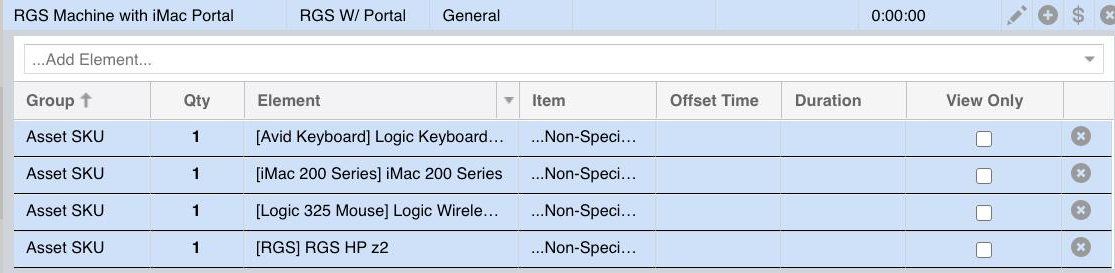
 - If an item is showing up as Non-Specific it is a Generic Asset that needs to be replaced with a Specific Asset