Summary
There will be times you will need to swap an Element on a Booking or Order. A common example is when you have booked a generic Element and you want to swap it to a specific Element. Instead of cancelling and creating a new Order, you can swap the Element/s in a few different ways. This article walks you through how to swap Elements from the Project/Order Grid, through the use of Order Tools, and also directly from the Scheduler
Swapping Elements with Easy Swap from the Project/Order Grid
- From the left-hand navigation view select Projects or Orders to open the Project/Order Grid
- Select a Project or Order and click on the Worksheet tab
- Double-click the Booking line item on the Worksheet. A dropdown menu will appear. This dropdown will only show Elements that are within the same Element Category ( e.g. Position, SKU, Facility Type, Service Type) as the one you selected
- Select an Element from the dropdown to swap
Swapping Elements with Advanced Swap from the Project/Order Grid
The Advanced Swap tool allows you to swap for any Element and also view their schedules.
- From the left-hand navigation view select Projects or Orders to open the Project/Order Grid
- Select a Project or Order and click on the Worksheet tab
- Select the sandwich icon to the left of the Booking you wish to swap. This will open a list of options
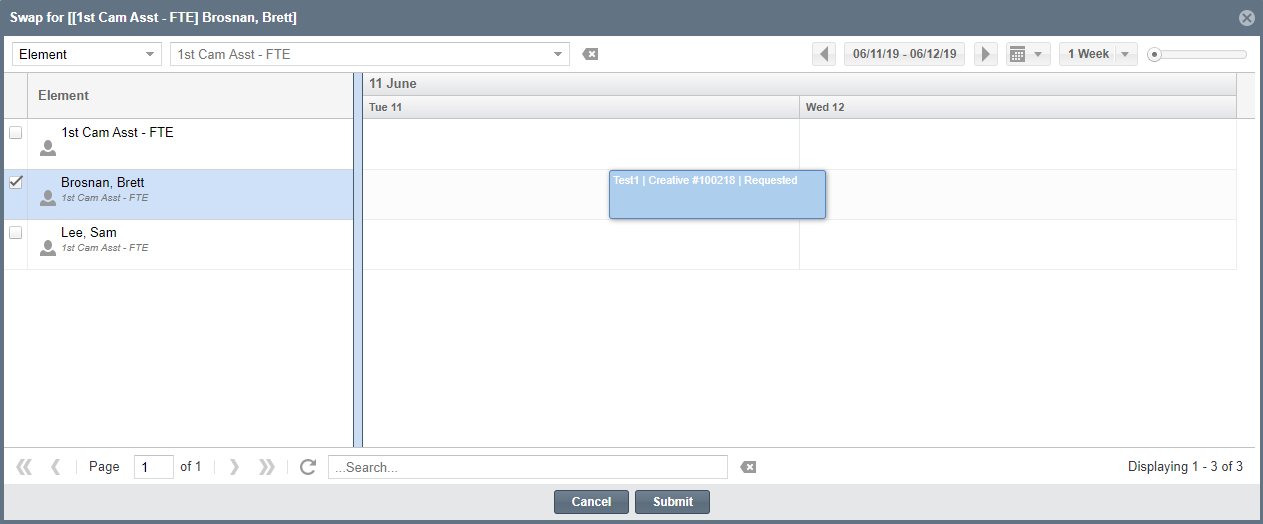
- Select Swap Element from the list. A Swap Elements popup window will appear
- The top left dropdown will set the view options for showing your Elements by Hierarchy or by Favorite
- The top right dropdown is where you select what Elements you want to view or which favorite to show
- Select the checkbox next to the Element you wish to swap
- Click Submit to confirm your swap
Swapping Elements Using Order Tools
- From the left hand navigation menu click on Orders to open up the Orders grid
- Find the Order which needs its Elements swapped
- Select checkbox next to the Order
- Ensure the Options menu is expanded on the right-hand side of the grid and select Actions > Modify Selected in Tools to open the Tools window
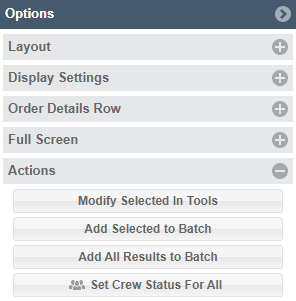
- Select checkbox next to the chosen Order and click the Modify Order Tools button
 on the right-hand side
 - Click on the Swap Elements icon
 next to the Element you want to swap. This will open an Element search field. Search for the new Element and click the Click to Swap icon
  next to the new Element to swap the Elements
 - The new Element will show up in the New Element column. Click Close to exit
Swapping Elements from the Scheduler
- From the left hand navigation menu click on Schedule > Scheduler to open up the Scheduler
- Find the Booking/Order which needs its Elements swapped
- On the Gantt view of the Scheduler, right-click the Booking to access a drop-down menu. In the menu, click on Swap Element
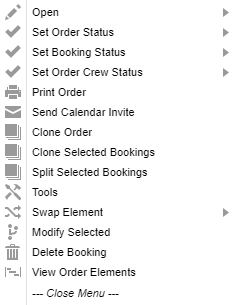
- Under Swap Element, you can select Quick Swap to search directly for the replacement Element or Advanced Swap to open a more detailed view of the Elements available for swapping
- In the Advanced Swap window, you can search for other Elements by using the drop-down menu at the top, and then select the checkbox next to the Element you would like to swap to
- Click Submit to save and close. Note: if the update is not reflected in the Scheduler, just refresh your Scheduler