Summary
This article will walk you through the basic ShowMgr interface and navigation to include browsing, searching, and updating your profile
Logging into ShowMgr
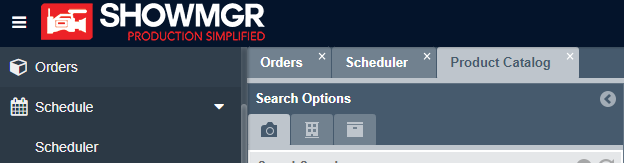
Once you have logged into ShowMgr web (see the article Logging in for the First Time if you need help with logging into ShowMgr) you will notice there is a navigation menu on the left hand side and a blank workspace.
The Main Navigation Menu
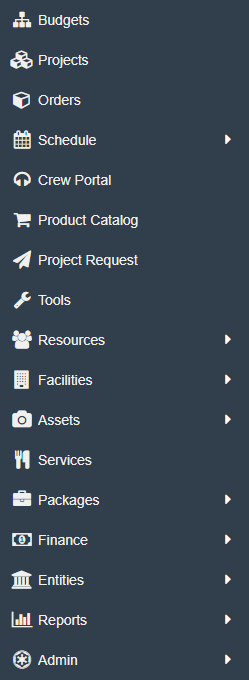
The left hand navigation menu contains tabs that directs users to specific locations within ShowMgr. Many of these pages can be restricted so that only resources with certain security level access are allowed
to access, view, and/or modify the data within each page.
Some of these tabs have arrows, which denote sub-menus. Just click on the arrow to show the sub-menus.
Renaming the Navigation Menu Fields
Depending your business, you may wish to rename one or more of the main navigation menu fields. To rename a field (e.g. from Finance to Accounting):
- Right-click the field you want to change
- Select Rename to open up a new window;
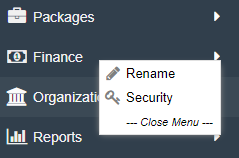
- Type in the new name and select Submit to save your changes
Searching in ShowMgr
On most pages you will find a search option  ,a search field
 or a larger search options section. Use any of these search options to search by the various fields provided from the current page. These search tools allow you to do a more detailed search and narrow down your results on various pages. You can also save your search for future use.
,a search field or a larger search options section. Use any of these search options to search by the various fields provided from the current page. These search tools allow you to do a more detailed search and narrow down your results on various pages. You can also save your search for future use.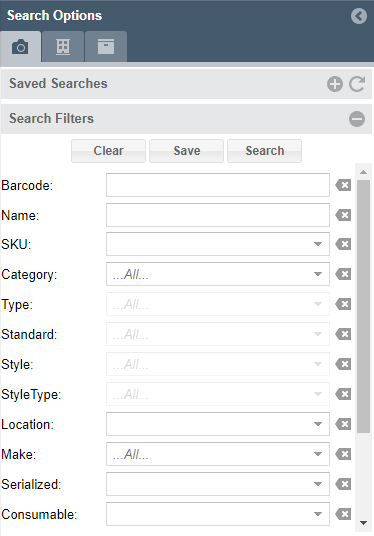
Pinning, Renaming, and Moving Tabs
As you start to open additional sections of the left hand navigation menu, these sections will load as tabs on the main page, allowing you to switch between the sections more easily. The Active Tab is denoted in light gray, while the Inactive Tabs are in a dark gray. A few Tab features include:
- Pinning and Unpinning Tabs: The Inactive Tabs and Active Tabs can be pinned and unpinned to the window. Just right click the tab and select Pin Tab or Unpin Tab (if you don't have this ability, talk to your administrator about getting access rights to pin tabs. Here is a useful article for them: Assign Pinned Tabs to an Access Key)
- Renaming a Tab: To rename a tab, the tab must pinned. After pinning the tab, right-click the desired Tab and click Edit. Type the new name for the tab, then click OK
- Moving Tab Location: To move a tab's location, click and drag the tab to its new location
Scrolling through Pages
To enable faster load speeds, most lists within ShowMgr are navigated through page turns, rather than scrolling (sometimes a combination of the two is used). When you see the following menu, notice that there is further information on subsequent pages

Update your ShowMgr Profile
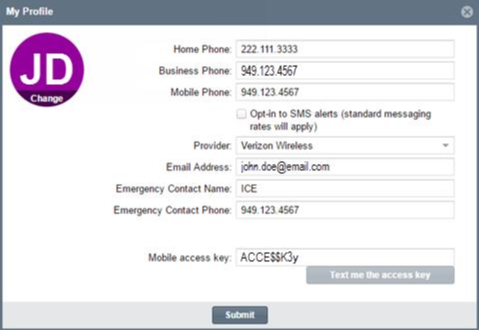
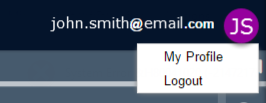
- Go to the icon next to your email in the top right of your screen and click on My Profile
- Enter in or update your contact information and click Submit when completed. This is also where you can access your Mobile Access Key for use with the ShowMgr GO mobile application (see our article ShowMgr GO: A How to Guide)