Summary
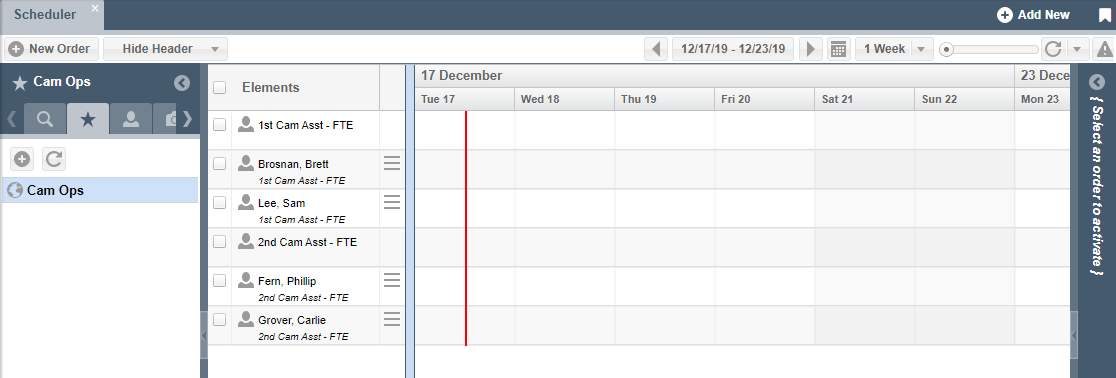
The use of Favorites can significantly reduce the time required to search for and identify Elements to add to the Scheduler. This ‘How To’ article will guide you through creating Favorites via searching for Elements, via the Favorites Tab, editing Favorites, and then finally loading Favorites into the Scheduler
Creating Favorites via Searching for Elements
- Inside Scheduler, expand the left hand side to open up the Search Elements box
- Click inside the Search Elements box. Begin typing the name of the Element or drill-down your search using the drop-down arrows on the right hand side
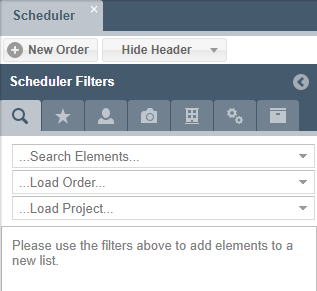
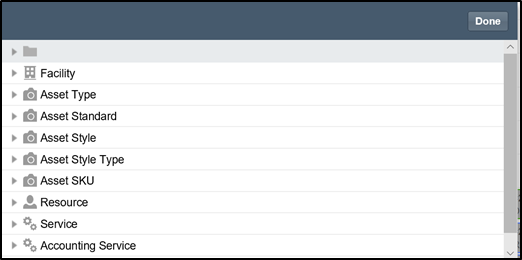
- Select the desired Element by clicking the Add sign
 next to the desired Element and click Done when you are finished adding all of your Elements
 - Once Elements are chosen, click Save to save your Favorite
- Name the selection of Elements as a Favorite
- Click Save
- To make your Favorite visible to other users with access, select Global and click Save
Creating Favorites via the Favorites Tab
- To access your Favorites, click the Favorites tab at the top browser bar

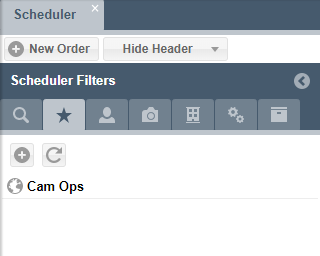
- Click the plus sign
 to open the Favorites dialog box
 - Give your Favorite a name
- Add individual Elements by clicking on the Add Element drop-down, or
- Add Elements from your Saved Searches by clicking the Add Search drop-down
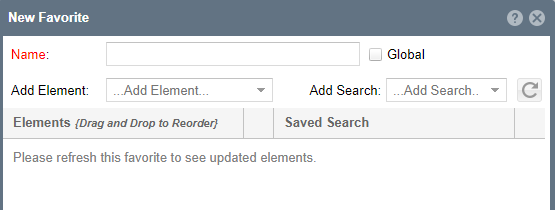
- Choose the order you would like Elements to display in the Scheduler by using drag and drop functionality
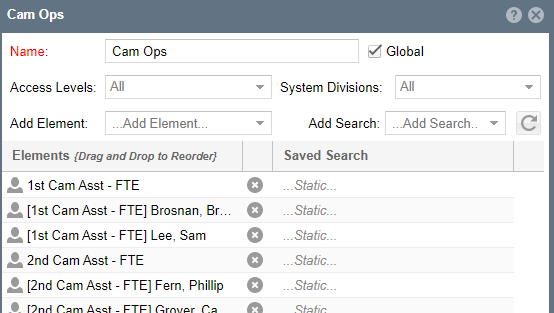
- Click Submit to save your Favorite
Editing Your Favorites
- To access your Favorite Quick List Panel, click the Favorites tab at the top browser bar
- You can refresh
 , edit
  , or delete
  your Favorites from this Quick List Panel by clicking on the three dots to the right hand side of the Favorite
Loading Favorites into the Scheduler
- Navigate to Schedule > Scheduler
- To access your Favorite Quick List Panel, click the Favorites tab at the top browser bar
- Double-click on the Favorite you would like to load into the Scheduler