
Summary
This new feature improves the visibility and management of different timezones within ShowMgr. This added functionality is particularly important for users who work across different timezones. Now the date time attribute will show local time e.g. LCL for users in London, England, and will account for changes for Daylight Savings in those locations.
Setting a user's timezone and local time in ShowMgr
- From the main left-hand navigation menu, select Admin > Users > User Accounts
- Search for the user, click on the hamburger icon next to their name, and select Modify User to open up the user's information
- There are now two fields related to time:
- Timezone: The official international time zone e.g. GMT
- Daylight Savings Rule: This is the rule that determines the local time based on changes related to Daylight Savings
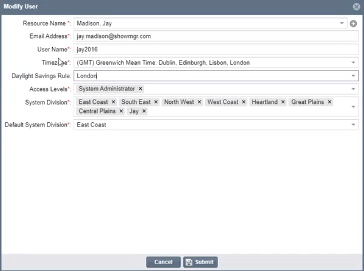
- Make any changes and click Submit to save
Once a user has a Daylight Savings Rule attached to their profile, whenever they are attached to an Order, Project, etc the system will automatically translate the time into local time for the user. These times will be denoted by a 3 letter local time code (e.g. LON, LCL) whenever you see Start or End times (see example below).

NOTE: If you need an additional timezone rule set up in your instance for users in a specific location, please submit a request to our support team.