
Summary
If you want to restrict the ability for some of your user groups to view sensitive information within your ShowMgr instance, you can customize each worksheet's settings (e.g. Order worksheet, Project worksheet, Budget worksheet). This article walks you through how to change the worksheet's security settings to best match your needs.
Set up or change a worksheet's security settings
- Navigate to the grid of the worksheet you want to modify (e.g. Orders, Projects, Budget/Bid)
- Open up any Order, Project, Budget, etc from the grid, click on the worksheet tab
- Click on the Settings icon
 at the top right hand corner of the worksheet and select Configure Security from the drop-down menu to open up the Configure Worksheet Security window
 - Add and/or delete the different user groups (access levels) from different security parameters. Each parameter has a definition listed next to it:
- Hide All Cost: Hides the entire cost section and totals from these access levels
- Hide All Revenue: Hides the entire revenue section and totals from these access levels
- Lock Element: Prevents these access levels from adding, removing, specifying or unspecifying a booking. Note: locking an Element prevents these access levels from booking Elements
- Lock FF: Prevents these access levels from changing which Fringes & Fees are associated to a booking
- Lock Cost: Prevents these access levels from changing anything that could affect the cost of a booking or actual
- Lock Revenue: Prevents these access levels from changing anything that could affect the revenue of a booking or actual
- Hide Costs Rates: Hides the cost rate and cost total per line for these access levels. Users can see rate names, but not values. For more information on rates, see our article System Rates and Rate Cards
- Hide Revenue Rates: Hides the revenue rate and revenue total per line for these access levels. Users can see rate names, but not values.
- For more information on rates, see our article System Rates and Rate Cards
- Read Only: Locks all modification (cell editing and action buttons) for these access levels
- Hide Bid: Hides the Bid View from these access levels
- Click Submit to save and close the window
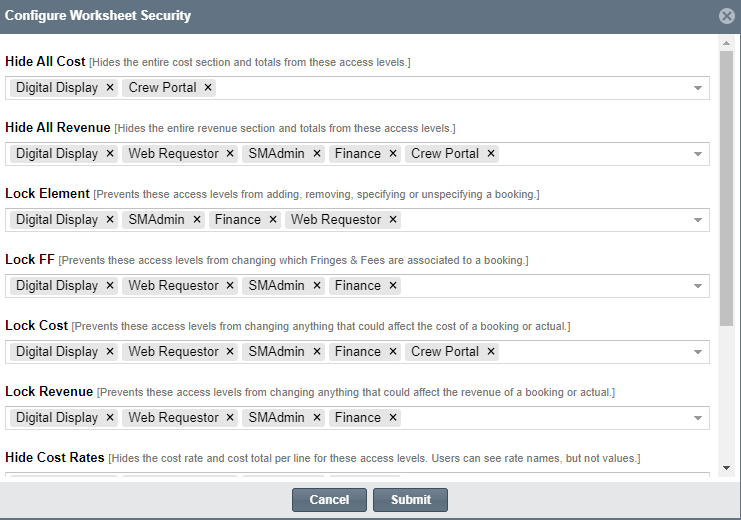
Note: You will have to configure each setting but just once for all worksheets. You do not need to configure each worksheet.
Changing User Navigation Permissions
It's possible to change a user group's navigation preferences. From the main left-hand navigation menu, select Admin > Navigation to open up the Navigation grid. Here you can change the various navigation menu items a user group will have access to. Remember to click Save to save your changes before refreshing the view.
