Summary
When you create a new Order in ShowMgr, you can either create a brand new Order, or create it from a template. Templates can be really useful for streamlining and standardizing the required information for Orders from a particular Order Class. This article walks through how to create an Order template and then create new a Order from that template.
Creating a new Order template
In order to create a new Order template:
- From the main left-hand navigation menu, select Orders
- In the top header bar, select the New button and select Template from the drop-down menu
- In the New Template pop-up window, fill out the Order Class and then any other required information
- Click Submit & Close to save your template for future use
Creating an Order from a template
To create a new order from an Order template:
- From the main left-hand navigation menu, select Orders
- In the top header, select the New button and select Order from the drop-down menu
- In the New Order pop-up window, select From Template at the top to load all possible templates for each Order Class
- Select the Order Class and then the template from the drop-down menus
- Fill out all of the mandatory and relevant optional information
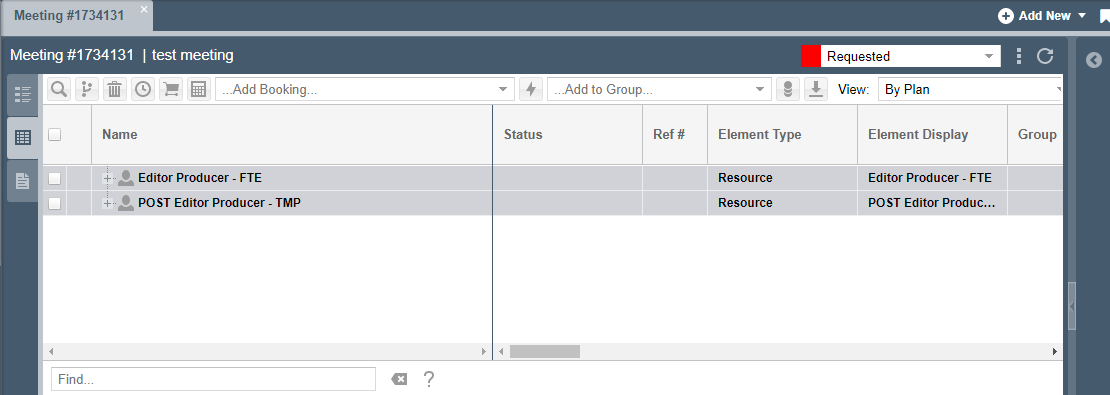
- Click Submit & Close to save or Submit & Open to open the new Order to work on it (e.g. assign Resources or generic positions on the worksheet like in the example below)