Summary
Within ShowMgr it's possible to organize your business into different groups to include Business Units, Divisions, and Departments. These organizations can be used for search, filtering, and more. This article walks through how to add a new Department to your ShowMgr instance.
Adding new Divisions and Departments
ShowMgr's organizations follow a hierarchy of Business Unit > Division > Department. In order to add a Department, you'll first need to add a parent Business Unit and a Division:
- From the main left-hand navigation menu click on Entities > Organizations
- To see existing Business Units, click the plus symbol
 next to a Business Unit to expand/collapse each one individually. If you need to add a new Business Unit click the Add New Business Unit button
- Fill out all of the required fields and click Submit
- Then select the Add button
 next to the Business Unit you wish to add a Division (and eventually a Department) to

- Fill out the required fields and click Submit
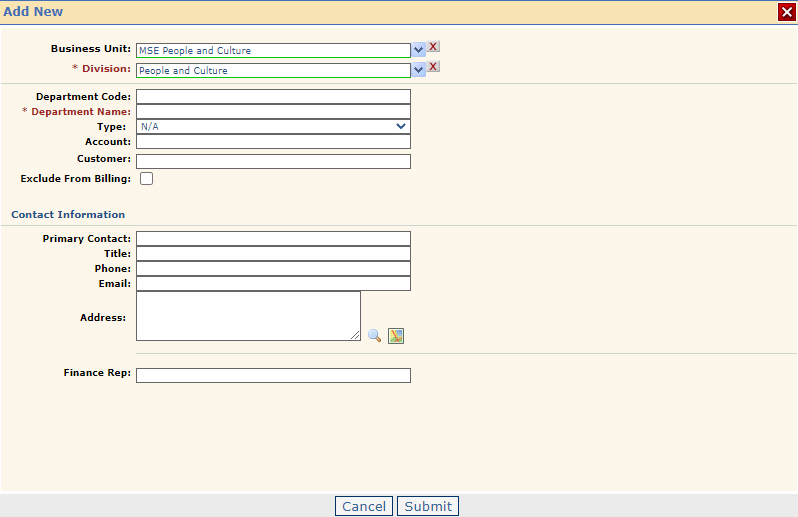
- Once you have a Division set up, select the Add button next to the Division you wish to add a Department to
- Fill out the required fields (see below). You'll notice the Business Unit and the Division will be pre-populated. Click Submit to save and add the new Department. This Department will now be available throughout your ShowMgr instance.