
Summary
This new feature enhances the audit log to reflect all movements made on worksheets, to include when a Resource is swapped and by who (system and user generated).
Using the new Audit Log
- From the Order worksheet, click the traffic light icon at the top right hand corner next to the Order status bar
- Select Audit from the drop-down menu to open up the Audit Log
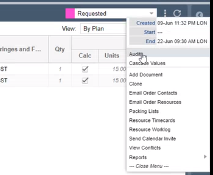
- In the Audit Log, you will be able to see any changes that have been made to the Order, by whom, and when the change was made. You can see the old Resource in the Old Value column.
- Note: The date in the Reference column shows the current date of the booking. This will let the user know what booking they are looking at if the current Resource has many bookings on the same Order (Mon, Tue, Wed, etc).
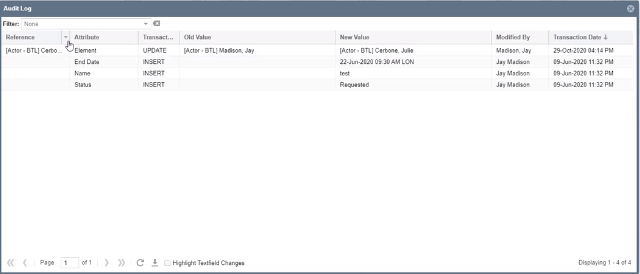
- Note: The date in the Reference column shows the current date of the booking. This will let the user know what booking they are looking at if the current Resource has many bookings on the same Order (Mon, Tue, Wed, etc).
Note: Anywhere in the application where an Element is changed to another will trigger the audit feature that logs the before and after.