
Summary
This new feature enhances a users ability to add a new Attribute with an Element Field Type, allowing the user to multi-select for all Resources, Assets, Facilities, and Services so they can add any Element onto an Order just like you do any other Attribute.
Adding a New Attribute with Elements
This new feature provides a new multi-select option for system defined Attributes which can be used to select Resources, Assets, Facilities and Services, and populate the selections as Bookings on the worksheet.
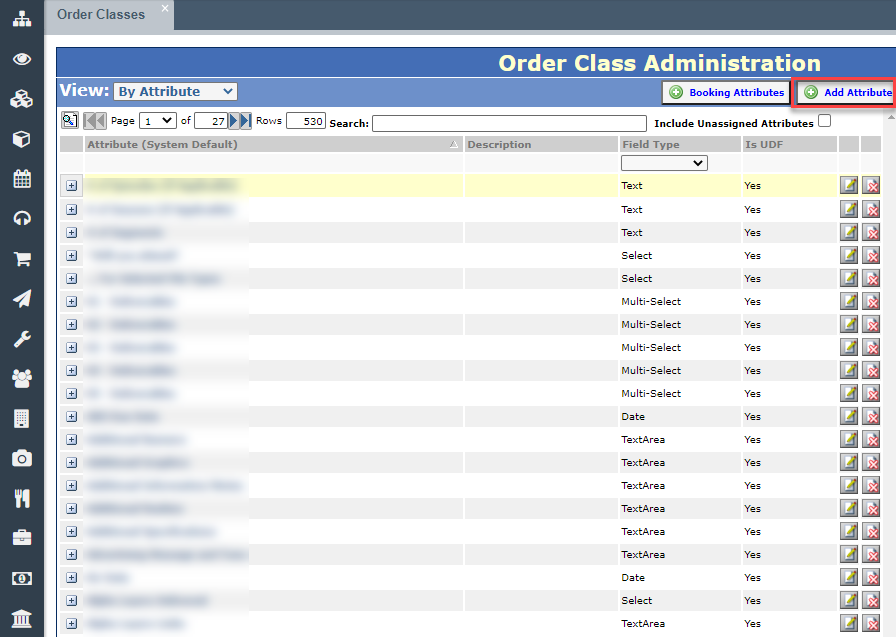
To see the change, navigate to Admin > Order Admin > Order Classes and change the view to By Attribute. Click on the Add New Attribute button at the top right-hand corner to open the new Add Attribute page.
In the Field Type drop down menu you will now see Element, which will allow you to define which Element you need.
Once the Attribute has been created, you will be able to drop this Element onto an Order Class and whenever you enter a value for that Attribute e.g. a Reporter (Resource) will get automatically booked onto that Order through this new Attribute type. Then there will be a sync between the Booking/s and this Attribute, so as you make changes to the Attribute, those changes will flow through to the Booking/s (and vice versa).
Notes on the number field: The number field can not be restricted but you can set up a select field with options 01,02,...99, etc. This would be a controlled list of numbers. Keep in mind that these options are varchar/strings so to sort correctly you will need to include the "0" before values 1-9. Or if you have 3 digits of numbers you will need to prepend "00" or "0" (001, 002,...010, 011,...100,101,102, etc)