
Summary
This new feature gives the user ability to create personal saved searches, create global saved searches that are accessible by everyone, and also share saved searches with specific users or groups. The enhancement is a global change across the system and applies to all search panels within ShowMgr where you have the ability to save a search as well as grid view settings.
Viewing your Saved Searches
When looking at your list of saved searches, you'll notice there are now two toggle buttons at the top of your list:
- My List acts like a shortlist. It contains all of your personal searches as well as any shared searches that you choose to add to your shortlist
- All is a longer list as it contains all of your searches as well as all shared and public searches. Note: Any saved searches that is greyed out in the All list are searches that are not in your My List yet, and if you do not have the necessary permissions to view a search it will not show up in your All list.
Toggle between the two buttons depending on your needs. This feature is available in Scheduler as well as any grid view.
Creating and Sharing a Saved Search
When you create a saved search in ShowMgr, you'll have the ability to share that search with everyone or a specific group of users.
When you save your search, there are two features you can choose from if you want to share your search:
- Public (previously called Global), which is based on access levels and system divisions. Add as many as you want. Any public search will have a 3-person icon next to it
- Share, which is where you can share the search with a group or particular user/s. Searches can be shared directly and do not have to be public
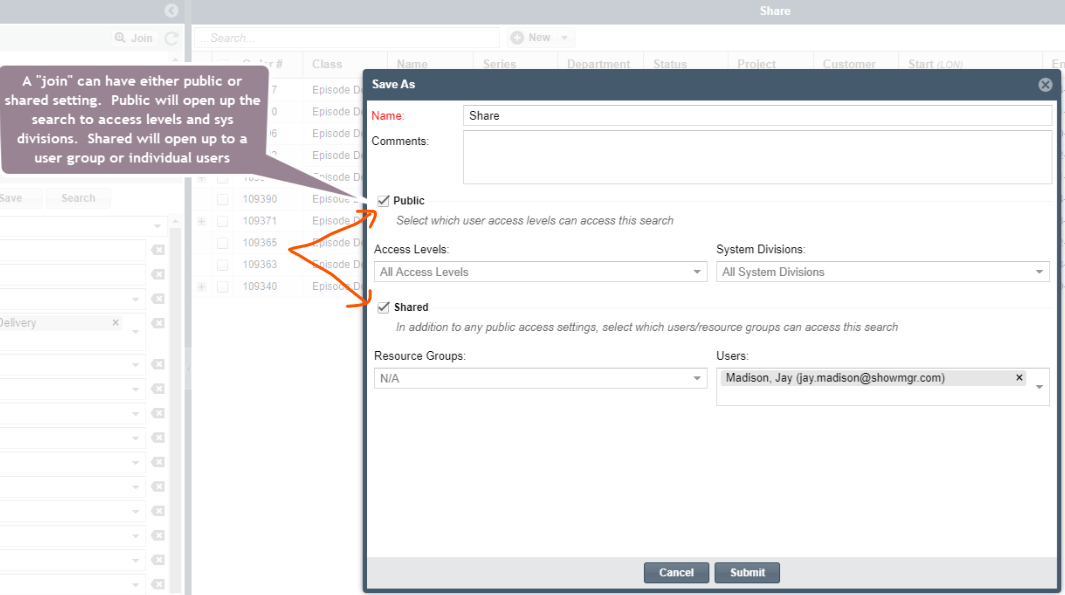
Once you share a saved search, it will automatically show up in the All list of those other groups and/or users.
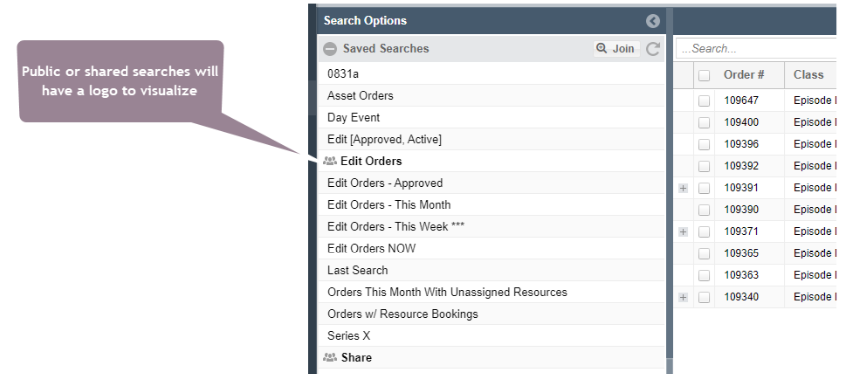
Adding a Shared Saved Search to your My List
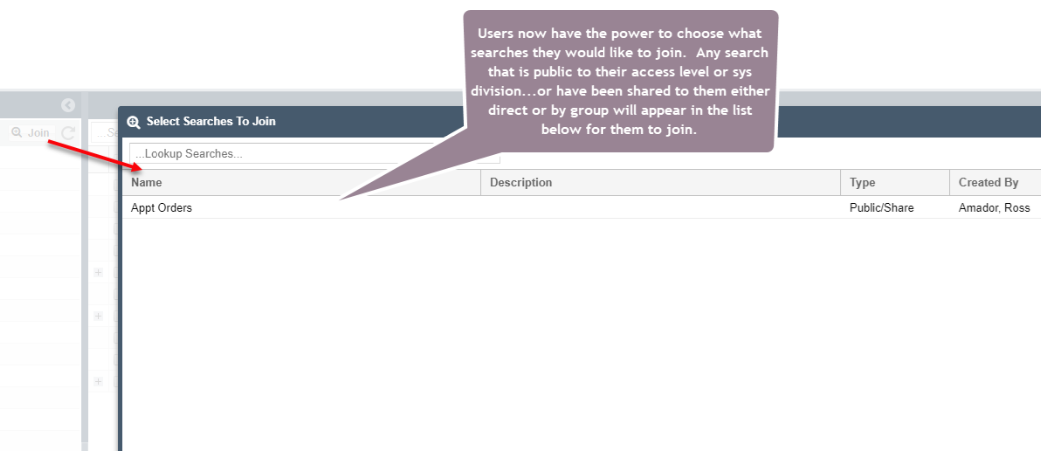
You can opt into saved searches that have been shared with you either by clicking All or by adding them to your My List.
To add them to your My List, in the All view, just click the traffic light button next to the saved search and select Join to My List.
Adding and Sharing Saved Views for Grids
ShowMgr has also expanded this new capability to grid views.
When adding a new grid view, navigate to the right hand panel of any view and select Options > Layout > +Add New. When you create the new view you will have the option to select Public and/or Share.
When you are in a grid, in the right hand panel navigate to Options > Layout > Manage to open the Manage View pop up. Here you can toggle between the All and My List options at the top of the pop up. If you see a shared view you want to add to your My List, just click it and select Add to My List.
You can also toggle between these views under Options > Layout > View so you can see and load your My List or All, depending on your needs.