
Summary
Your ShowMgr instance has a Calendar that shows all Resource information such as personal days off, out-of-office bookings, etc beyond actual assignments. This article shows you where to find the Calendar and how to filter the information so you can achieve the view you want.
Using the ShowMgr Calendar
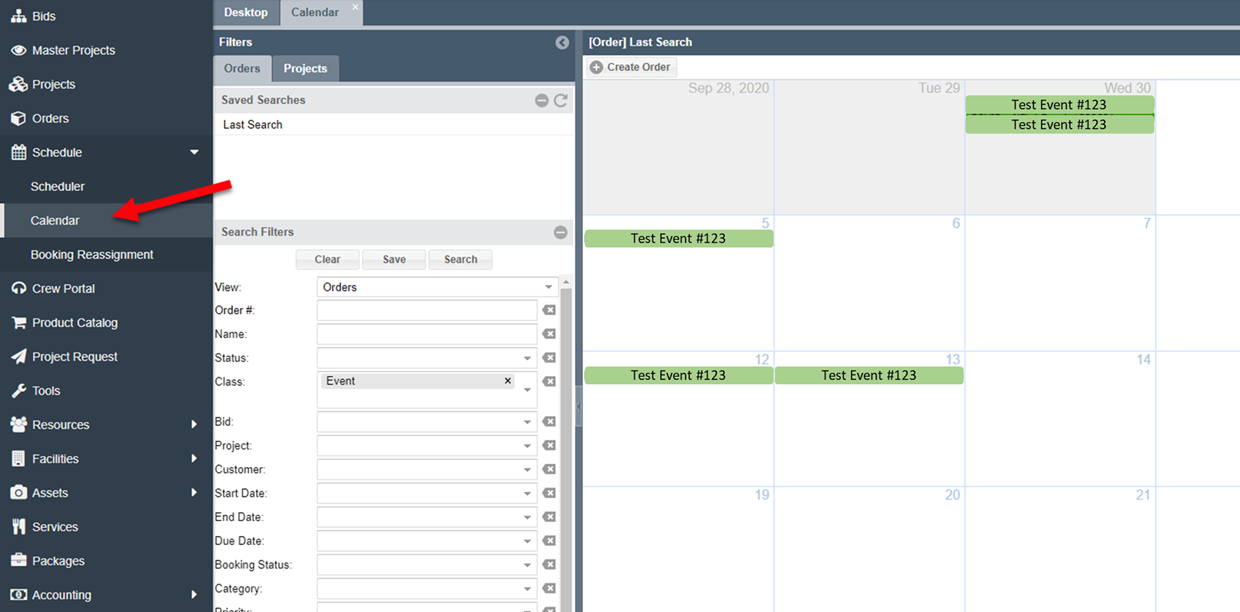
- From the main left-hand navigation menu, select Scheduler > Calendar to open the calendar
- The calendar will show all appointments in the system, however you can use the filters to isolate a set of appointments if needed (i.e. filter by department)

You can also modify the Calendar's settings via the settings icon at the upper right hand corner of the Calendar to show certain order statues, appointment types, etc. These are not global settings that an admin makes for all users, however the default is to show all bookings that have a status set. If no statuses are selected, then all will show... as long as the status is not configured to not show (e.g. on the crew portal).

A department appointment is an appointment for another user that is in your same department. It is the same as your appointment orders, it just happens to be an appointment order for another Resource in your department.
Example: Using the Calendar to See Events
A popular Calendar view is to use the search filter Class = Event, which will show a monthly view of all events in the Calendar. To open an event, you just need to double-click on the colored block to see the event's details (green in the example below).
Exporting the Calendar
Unfortunately the system does not allow you to export your ShowMgr calendar to an external calendar. You can send a calendar invite for each assignment, however the system does not do this in bulk for all assignments, appointments, etc.
To send a calendar invite:
- Find the booking you want to share
- Right-click the booking to open up the drop-down menu
- Select Send Calendar Invite to send a calendar invitation

Calendar Access
If you or one of your team members is clicking on the Calendar and is not seeing any content. This may be because you or they do not have the appropriate permissions within the system. Please contact your system administrator who can assist you with getting you the right access levels. Here's a handy article on how to modify user access permissions.