
Summary
Orders are a key functionality of ShowMgr. An Order is a task that is created for a Project, such as creating a storyboard, editing tape, or recording a voiceover. This article walks through the basic steps for cloning an Order or building a recurring Order in ShowMgr
Cloning an Order
- From the main left hand navigation menu, select Orders or the Scheduler
- Search for the Order you want to clone using the search fields
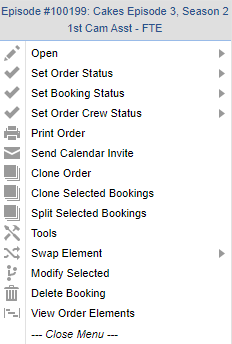
- Right-click the Order or Booking you want to clone and select Clone, Clone Order or Clone Selected Bookings (depending on your user permissions and Grid) to open the Clone Order window
- To make a single clone, select Single Clone and fill out all of the mandatory and relevant optional fields. If you want to clone a generic version of the Order, scroll down to the bottom of the window and next to the Elements that should be generic on the cloned version, select Clone Generic Only. This will ensure only the generic Elements are cloned, allowing you to substitute in the specific Elements in the future

- Confirm which of the Order components you want to clone for your new Order and also the name and status of the cloned Order
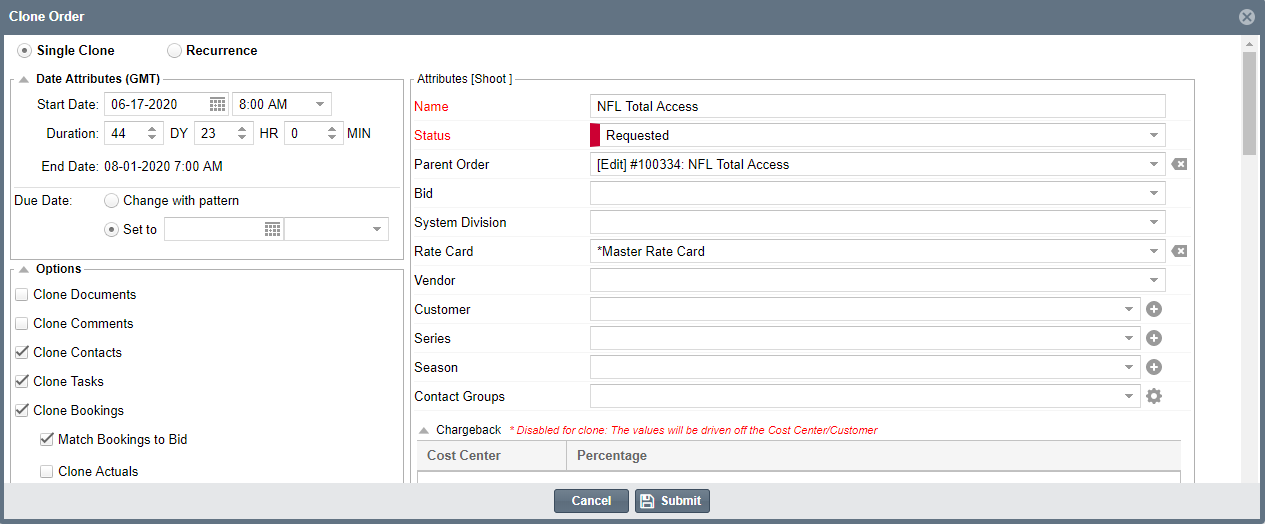
- Select Submit to save and close. You should be able to see the cloned Order show up in your Order list. If not, refresh your page
Making a Recurring Order or Booking
- From the main left hand navigation menu, select Orders or Scheduler
- Follow steps #2-3 above
- To make a recurring Order, select Recurrence and fill out all of the mandatory and relevant optional fields. Be sure to confirm which Order's components you want to clone for the new recurring Order. If you want to clone generic versions of the Order, scroll down to the bottom of the window and next to the Elements that should be generic on the cloned versions, select Clone Generic Only. This will ensure only the generic Elements are cloned, allowing you to substitute in the specific Elements in the future
- To add to more than one month use the "+" button under the Clone Order: Recurrence window to open up all of the months in the window
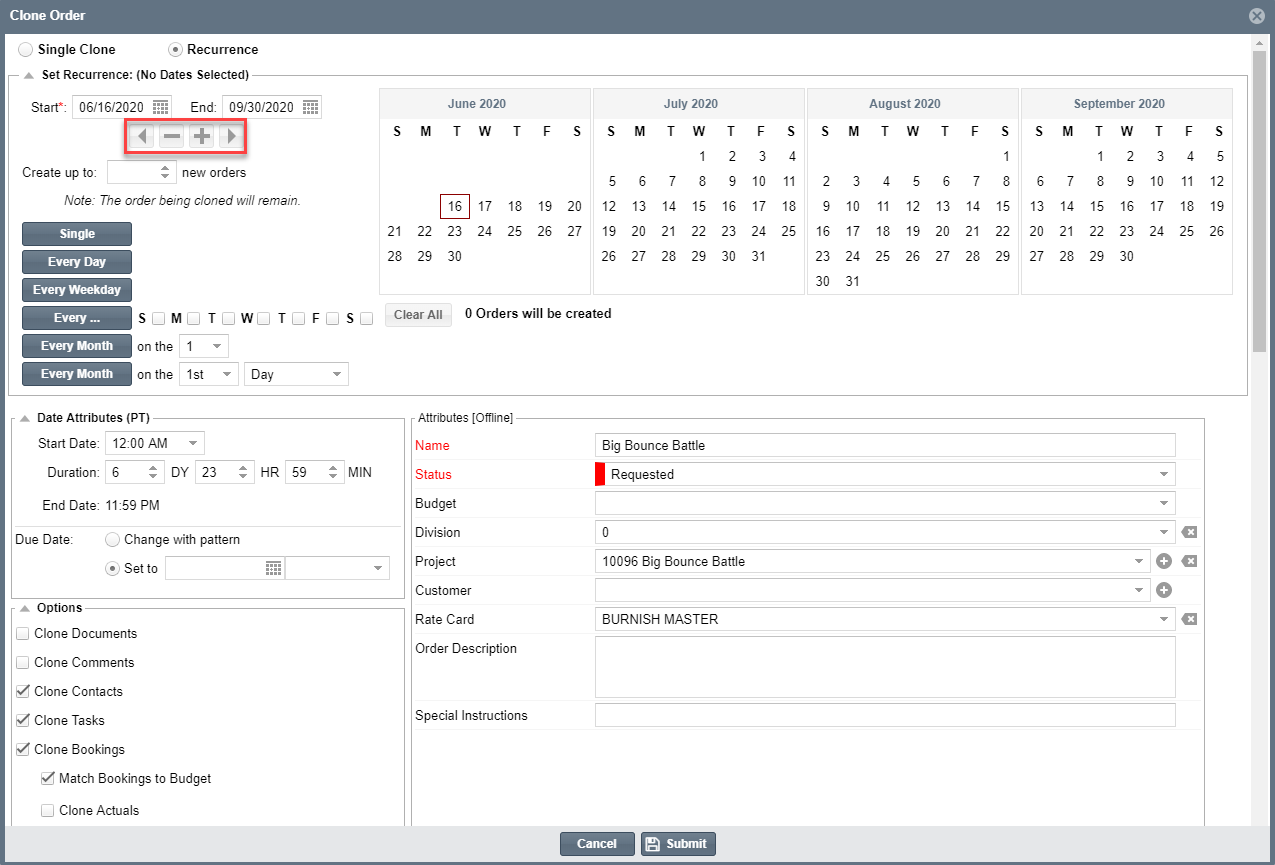
- Select Submit to save and close. You should be able to see the cloned Orders show up in your Order list. If not, refresh your page
For other tips on how to Modify or Edit an Order, see our Quickstart Guide on Orders for more information