
Summary
Packages are predefined groups of Elements which can be quickly and easily booked to Orders or Projects on ShowMgr. A single Package can contain several specific or non-specific elements. This feature is particularly useful for Assets as you can create a Package of various Assets that are routinely used together. This article walks you through how to add an Asset Package and an example of what an Asset Package may contain.
Example of an Asset Package
Below is an example of an RGS Asset Package.
The Asset Package could be a commercial grade zip-lock bag that contains a Macbook Pro, an apple power cord, a manual, a backpack, a mouse, a keyboard, a wifi card, a thumb drive, a Kingston lock, an extra battery, and a document bag. The bag would also include documents such as user manuals, instructions, an inventory checklist, and more. The bag would then be closed and have a unique barcode on the front.
Once the physical 'package' is created, a user would need to add each of the assets to the ShowMgr Asset Inventory and then group them together as an Asset Package in the ShowMgr Asset Inventory (see the next section on how to create a Package in ShowMgr).
Creating an Asset Package
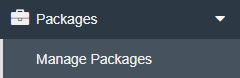
- On the left hand navigation menu and click on Packages > Manage Packages to open the Bundle / Package Administration page. Note: first time users will see an empty Package Grid, while existing users may see a Package Grid populated with search results
- To create a new Package, click the
 button located at the top of the Package Grid
 - The New Package Summary window will open up. Fill in the fields with all available information. Mandatory fields are identified with a red asterisk. Some points to note:
- Package Code and Package Name can be identical. Package Code can differ by being an abbreviated name or alphanumeric representation of the Package
- Package Types can be configured. System admins can submit their preferences by contacting ShowMgr
- If a Package is assigned to an Order Class, it is listed as an option within the Package attribute on the selected Order Class
- Note: The Package attribute must be configured via Order Class Administration to the chosen Order Class. Selecting a Package via the Package attribute does not book the Package to the Order
- Users have the option to treat a Package like a template. If checked, the Package will appear as individual Elements when booked to an Order
- Note: If a Package is not a template, it can have its own booking attributes like status, start and end dates that differ from its individual Elements
- A Package can also be automatically assigned to new Projects
- Click Submit & Close to save and close the form. Your new Package will show in the Packages Grid
- Once the Package appears in the Package Grid, click the
 button to modify the elements within the Package
 - Search for and add your Assets (Elements) to the Package by using the drop-down arrow on the right hand side of the Add Element
 bar or by selecting or by typing in the desired Asset name into the search bar. You can add specific or non-specific elements and various quantities to a Package
 - Click the button next to an element to add it to the Package
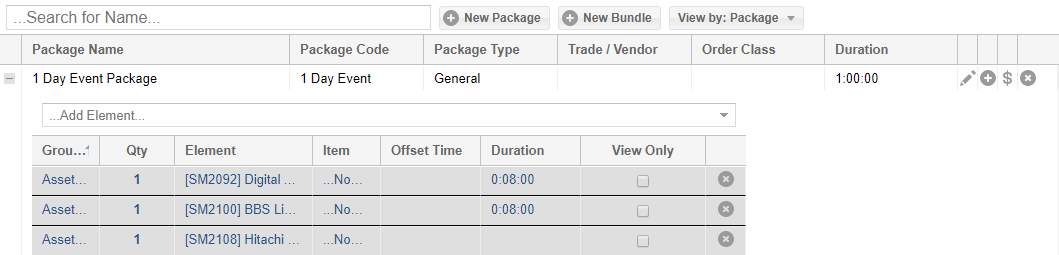
- Once the Asset Package has all its desired Assets, it becomes its own bookable item