
Summary
An Order Status shows the status of an order to include In Progress, Active, Hold, Complete, Cancel and many more. You can use this status to filter searches and track the progress of all of your Orders. This article walks you through the steps required to change an Order's status as well as limitations on making bulk updates to Order statuses.
How to Change an Order Status
- From the ShowMgr left hand navigation menu, select Orders
- Search for the Order/s you want to update using the Search fields on the left-hand side
- Select the check box on the left-hand side of the Order/s you want to update
- Expand the Options Menu on the right-hand side, and select Modify Selected in Tools to open the Tools window
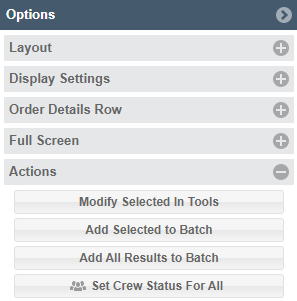
- Select Modify Order Statuses from the Tools menu

- In the Modify Order Statuses window, add in the new status for each Order in the New Status column
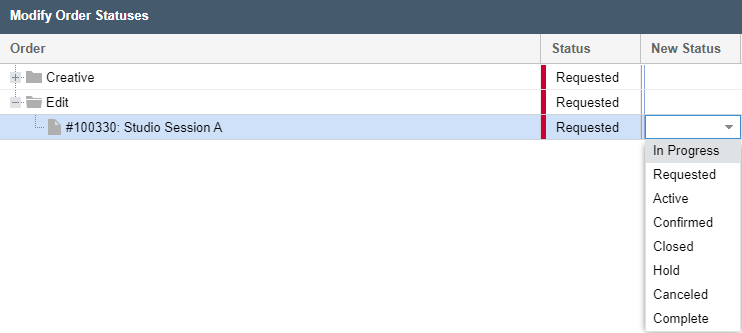
- Click Preview to see your change and Save
- To update more than one Order, they must be of the same Order Class and in the same state
Access Permissions for Order Status Changes
If you or another user are not seeing the status drop-down menu to change an Order's status, you (if you are an Admin) or your system administrator will need to check the following system settings.
Navigation Permissions
- From the main left-hand navigation menu, select Admin > Navigation
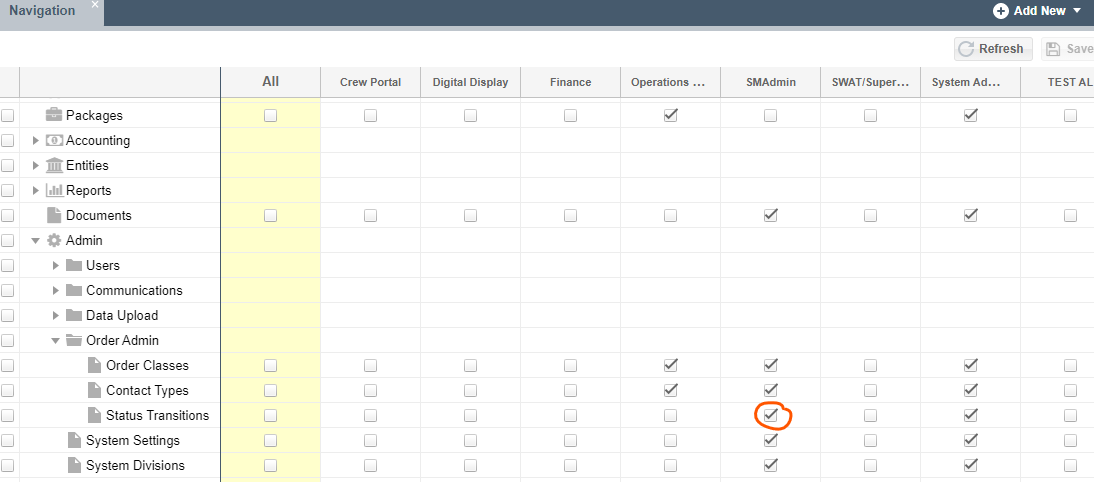
- On the Navigation page, expand Admin > Order Admin to find Status Transitions
- Ensure the Status Transition checkbox is selected under the user group you would like to be able to change an Order's status
Order Class Permissions
- From the main left-hand navigation menu, select Admin > Order Admin > Order Classes
- Set the View to By Class
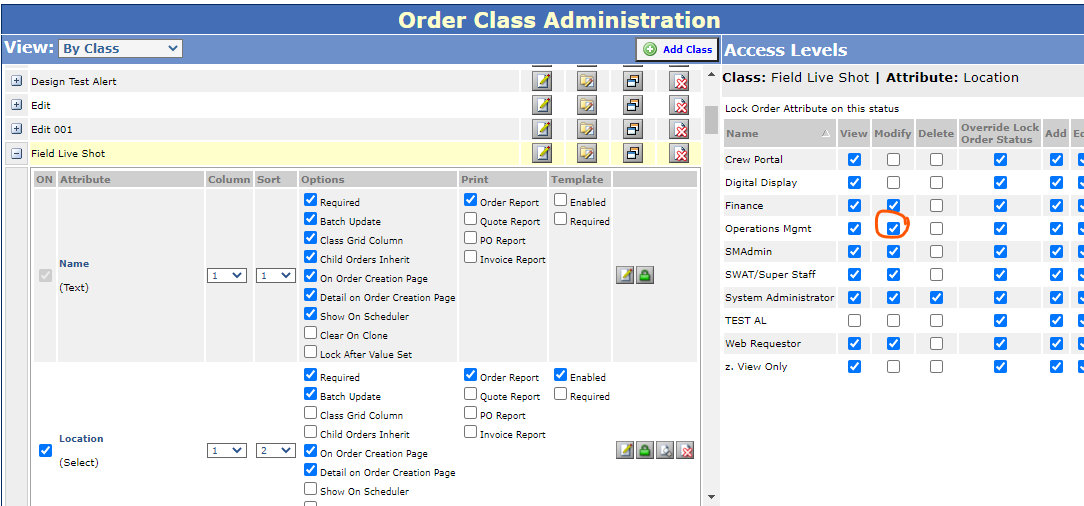
- Find and expand the Class and select the green Assign Attribute Security level button next to the Attribute
- In the Access Levels wing, ensure the Modify checkbox is selected under the user group you would like to be able to change an Order's status
Troubleshooting
If you or your Admin has updated your order class transitions but they aren't available as options when using the modify order status tool, navigate to your status transition settings (Admin only) and check that you have the correct statuses set. In the example below, if your current status = confirmed, then your status transition will use this as the current state to then find what statuses are next (complete or requested).
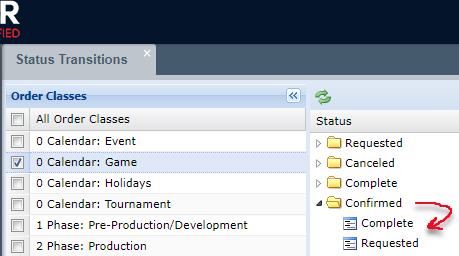
To learn more about setting up status transitions in our article Status Transitions for Order Classes and Resources (Admin Only)
Important Note
In order to update more than one Order at the same time, they must be of the same Order Class and in the same state. ShowMgr blocks mass status updates when multiple Order Classes are selected because each Order Class has their own configured state transition model. ShowMgr also blocks mass status updates when the Orders selected are not in the same state/status. ShowMgr does this to protect the transition rules for how an Order moves through its lifecycle. For example, if an Order is required to get "approved" before it gets "completed" then the system should not allow an Order to go direct from "requested" to "completed". Allowing multiple Orders in different states to move to a single state opens the door to bypassing required steps.