
Summary
ShowMgr comes with numerous reports so you can better manage your crew, finances, orders, projects, schedules, travel, and much more. This article walks you through the different ways to access the different reports to include the Report Library and the Dynamic Reports features.
Accessing the Report Library
The Report Library is where you can view static reports based on category, such as time sheets, production reports for events, payroll reports, and travel schedules.
To access the Report Library:
- Click on Reports > Report Library in the left hand navigation menu to open the list of Report Library categories
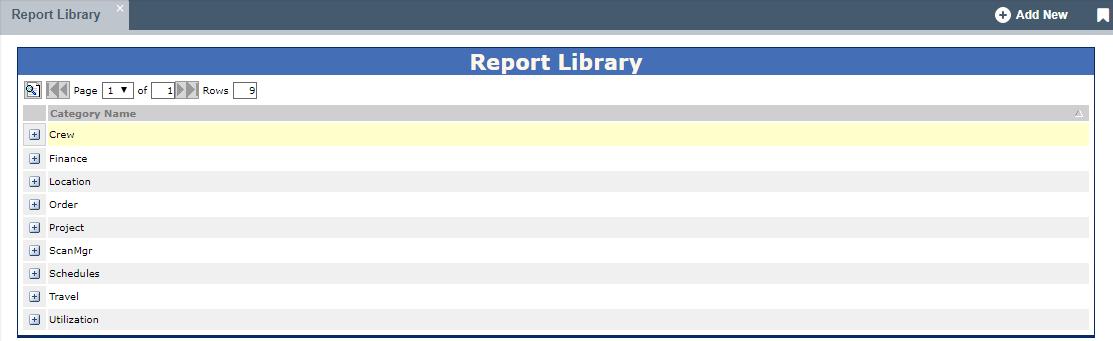
- Click the Plus
 icon adjacent to any category to view a list of reports available for the category
 - Click the Open Report
 icon adjacent to a report to set report parameters and view a report
Dynamic Reports
Dynamic Reports allow you to view dynamic data, such as the total number of hours a resource has worked on each order they have been assigned to; and the total cost, margin, and profit for an order or project.
To access Dynamic Reports:
- Click on Reports > Dynamic Reports in the left hand navigation menu to open the list dynamic reports available
- Click the report you wish to view. Fill in any search parameters if required
- The selected report will display
Document Library
The Document Library is enables users to view a list of documents that have been uploaded to ShowMgr, such as creative briefs, warranties, service contracts, room details, and images.
To access the Document Library:
- Click on Reports > Document Library in the left hand navigation menu to open the list dynamic reports available
- To open a document, click the Open
 icon
icon - To modify a document’s information, click the Edit File Info
 icon
icon - To delete a document, click the Delete File
 icon
icon - To add a document to the Document Library, click the Add New Document
 button
- To open a document, click the Open