
Summary
The billing functionality allows invoices to be created at the master project, project, and order levels at any point in the workflow. After an invoice has been created, it can easily be printed or saved as a PDF so the invoice can be sent electronically to the recipient. This article walks you through how to view and invoice, create an invoice, and adjust an invoice amount (if required).
Note: If an invoice status is set to Approved, it is not possible to make any type of modification to the invoice
Viewing Invoice Details
To view the details for an invoice that has already been created:
- Open the Project or Order that you wish to view an invoice for. Note: When viewing invoice details for a master project, it is not possible to view invoice details for projects or orders that are included in that master project. You can only view invoice details for the master project itself
- Click on Billing > Invoices from the left hand navigation menu to open the Billing view
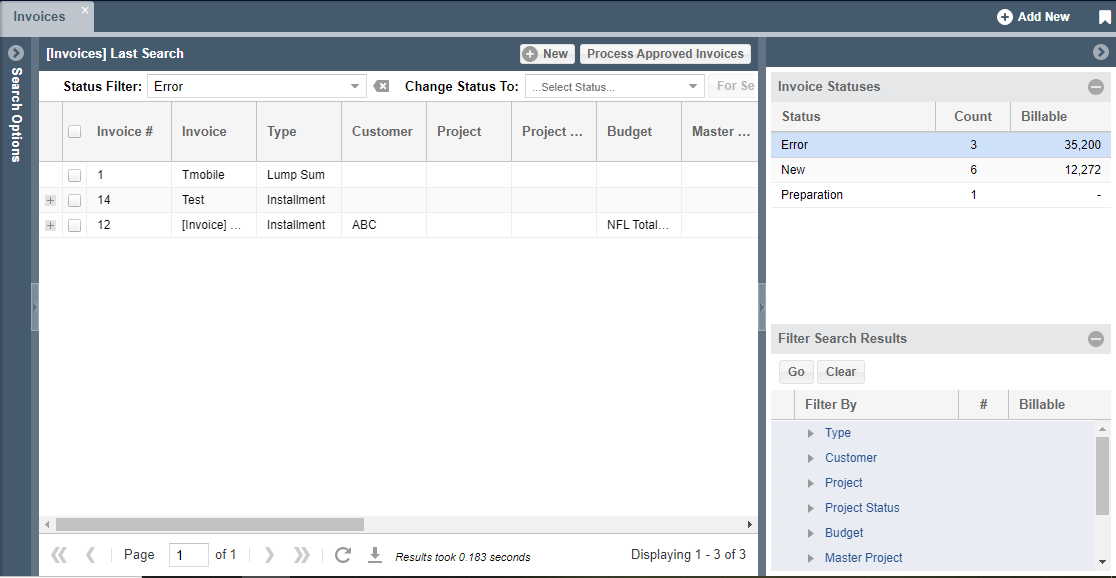
- You can filter the invoices either by using the Search Options, selecting your desired Invoice Status, or Filtering Search Results by Type, Customer, etc.
- Use the scroll bar to see more information about all invoices and then double-click on any invoice to see the invoice details
Creating an Invoice
To create an invoice for a master project, project:
- Open the Project or Order that you wish to view an invoice for.2. Click the Billing tab. 3. Click the Add Invoice button. The Create Invoice dialog box opens
- Click on Billing > Invoices from the left hand navigation menu to open the Billing view
- Select the New
 button to open the Create Invoice dialog box
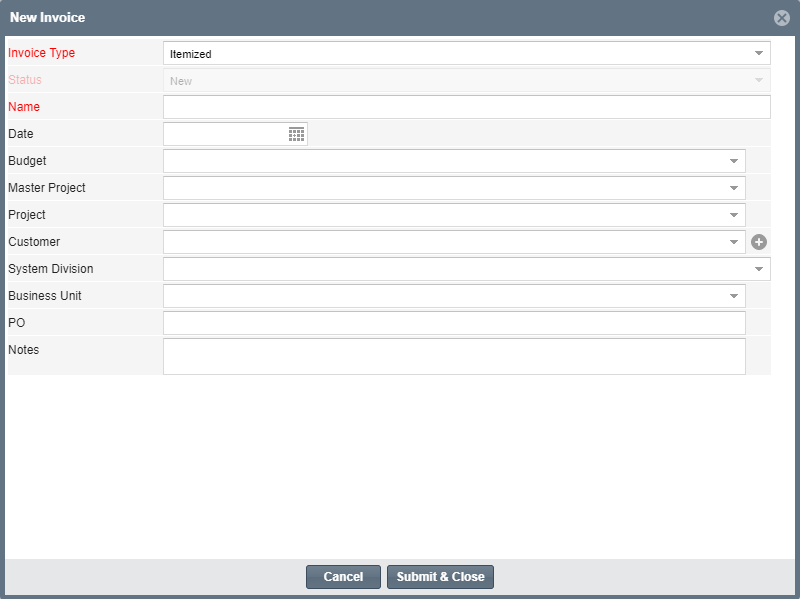
 - Complete the required fields (denoted in red), then click Submit & Close. The new invoice will display in the Invoices pane
- Click the new invoice. Note that there is no invoice amount. This is because no actuals have been added to the invoice yet. To add an actual to the invoice, select the check boxes for the actual(s) you want to add to the invoice, then drag the actual(s) over to the new invoice in the Invoices pane. An invoice amount now displays. You can also see our article Adding Actuals to Bookings ("Actualizing") for more information.