
Summary
Resources, one of the Elements in ShowMgr, are individuals, such as crew members and camera people, who get assigned to Orders. Any Resource can also be added to a Group as a way of simplifying and managing similar Resources. For example, you may want to create a Group that contains preferred editors. This article walks through the basc components of viewing and adding Groups
View Existing Groups
- To view the list of Groups already set up in ShowMgr, click Resources > Manage Groups
- To view which Resources are contained in a Group, click the Plus
 icon adjacent to the Group
Add a New Group
- To view the list of Groups already set up in ShowMgr, click Resources > Manage Groups
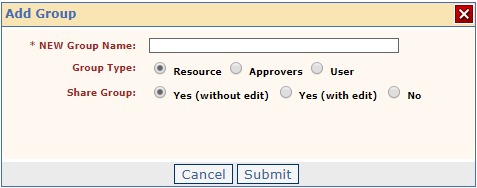
- To create a new Group, click the Add Group
 button, specify the name of the new group and other options, then click Submit to save
Edit a Group
- To view the list of Groups already set up in ShowMgr, click Resources > Manage Groups
- Identify the Group you want to modify/update:
- Click the Modify Group button
 at the right-hand end of the row. Note: you cannot change the Group type. You will need to create a new Group with a new Group type.
 - Click the Modify Group Members button
 to manage the Group's members. There you can use the Add button
  and Delete button
  to update the Group's contacts
- Click the Modify Group button
Note: If you have set up a new Group that is not showing up in your Group Billboard, try creating the Group with the Type: User instead of Type: Resource. If you continue to have issues, please contact our support team with any relevant screenshots.