
Summary
ShowMgr has the ability to generate purchase orders if an Asset, such as a camera or audio board, must be purchased from a third-party vendor. This article walks you through how to view purchase order details, create a new purchase order, view a purchase order report, and more.
Creating a Purchase Order
- From the main left-hand navigation menu, click on Accounting > Payments > Purchase Orders to open up the Purchase Order grid
- Select the New button
 at the top of the grid to open the New Purchase Order window
 - Fill out all of the mandatory and relevant optional fields on the New Purchase Order sheet and click Submit to save
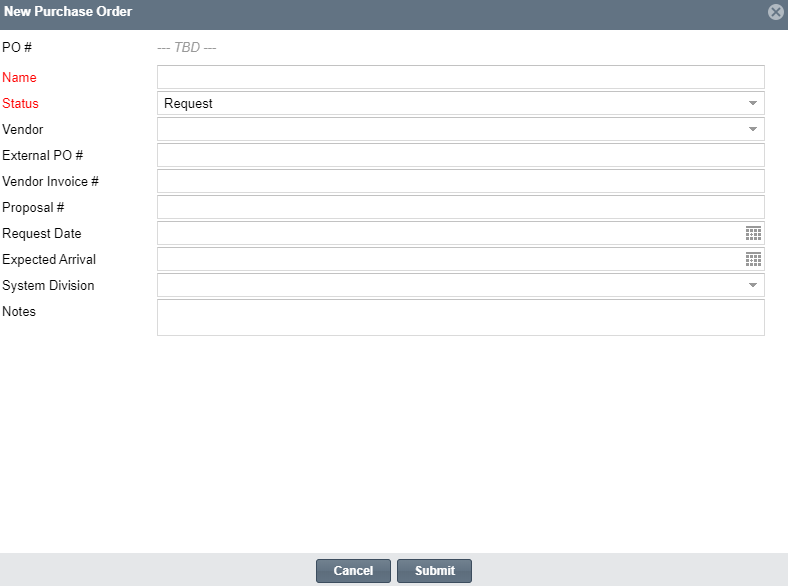
Note: At this time Admins do not have the ability to modify the Attributes that display on the Purchase Order worksheet. If you have an Attribute you would like displayed, please contact our support team
Creating a Purchase Order from the Order Worksheet
Purchases Orders can be created for both Orders and Projects. To create a purchase order directly from an Order:
- From the main left-hand navigation menu, select Orders to open the Orders grid
- Select the Order you wish you create a purchase order for and then select the Order's Worksheet tab
 (Note: Make sure the Element you wish to create a Purchase Order for is associated with the Project or Order, and a rate is attached to the Element)
 - Ensure the Order view is set to By Plan at the top right hand corner of the grid. This will list all of the Bookings you have on your Order

- Select the check box next to the Element you wish to add to the Purchase Order
- Select the Purchase Order button
 at the top menu, and then select Add to PO from the drop down menu. Note: If the Purchase Order button isn't showing up in the top menu, check the page view is set to By Plan
 - Select the Add New button
 to create a new purchase order for the Element
 - Fill out all of the mandatory and relevant optional fields on the New Purchase Order sheet and click Submit to save
Viewing Purchase Order Details
- From the main left-hand navigation menu, click on Accounting > Payments > Purchase Orders to see the list of existing purchase orders
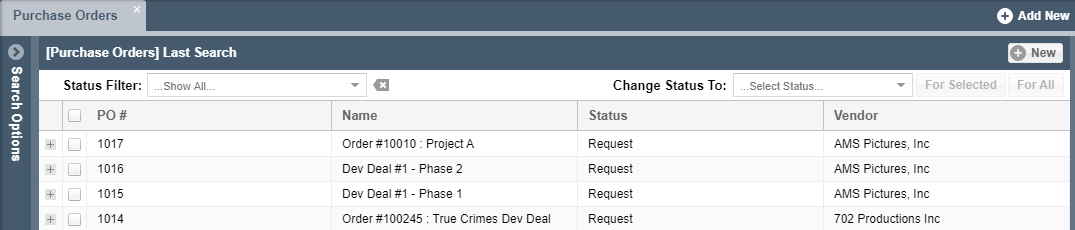
- To locate a specific purchase order by an attribute e.g. Vendor, Status, expand and use the Search Options menu on the left hand side of the grid
- Click the
 button to the left of the purchase order to view the Elements on the purchase order. Here you will find the Quantity, Units, UOM, Rate, etc. Double-click the purchase order to see additional details and update the purchase order

Note: If a change is made to an order or project after a purchase order has been created for it, the changes made will not be reflected in the purchase order — a new purchase order will have to be created to reflect any changes
Updating a Purchase Order
- From the main left-hand navigation menu, click on Finance > Purchase Orders to see the list of existing purchase orders
- Double-click the purchase order you would like to update. This action will open the Update Purchase Order window
- Make any desired changes to the purchase order and click Submit to save your changes
Viewing a Purchase Order Report
- From the main left-hand navigation menu, click on Reporting > Dynamic Reports to see the list of available dynamic reports
- Select Purchase Orders on the left hand side of the grid, and fill out the relevant fields to define the parameters for your report
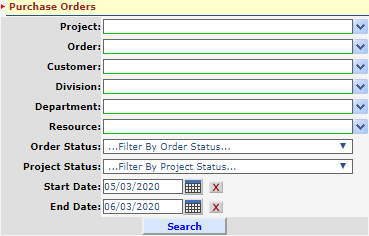
- Use the menu bar at the top of the grid to filter and sort the columns, save the report, specify the format for printing, and to print the report
