
Summary
Assets, an element in ShowMgr, are tangible goods, such as cameras, lights, jib arms, and software. Assets can be assigned to Orders. This article walks through the basic components viewing and modifying assets
Viewing Asset Details
- Navigate to Assets > Manage Assets in the left hand navigation menu. The Asset Center displays a list of all Assets that are set up in ShowMgr
- Note: Some Assets may have multiple entries listed in the Asset Center. This is because there may more than one instance of that asset. For example, there may be multiple cameras or audio boards of the same make and model. Each asset would have its own Asset Code assigned to it
- If necessary, perform a search to locate the asset you wish to view details for using the search panel on the left hand side of the Asset Center
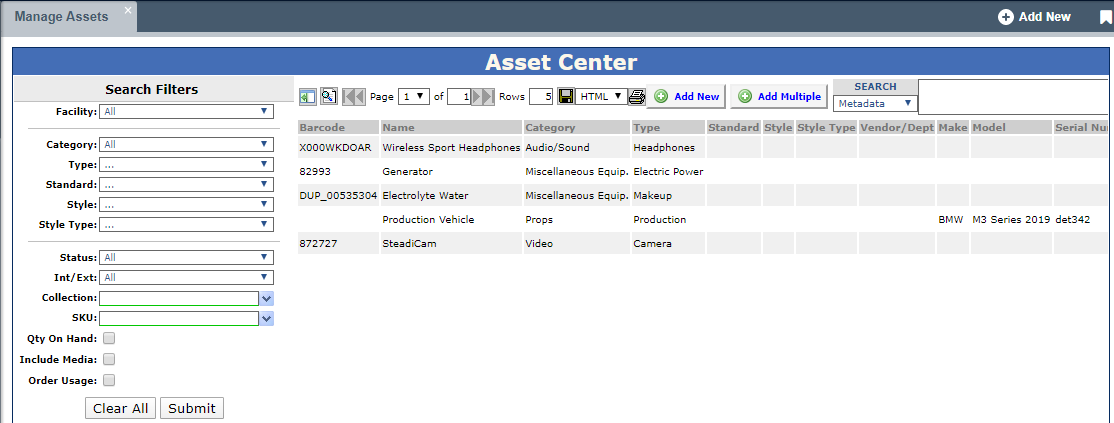
- When the desired asset is located, double-click the asset name to show the Asset's additional details
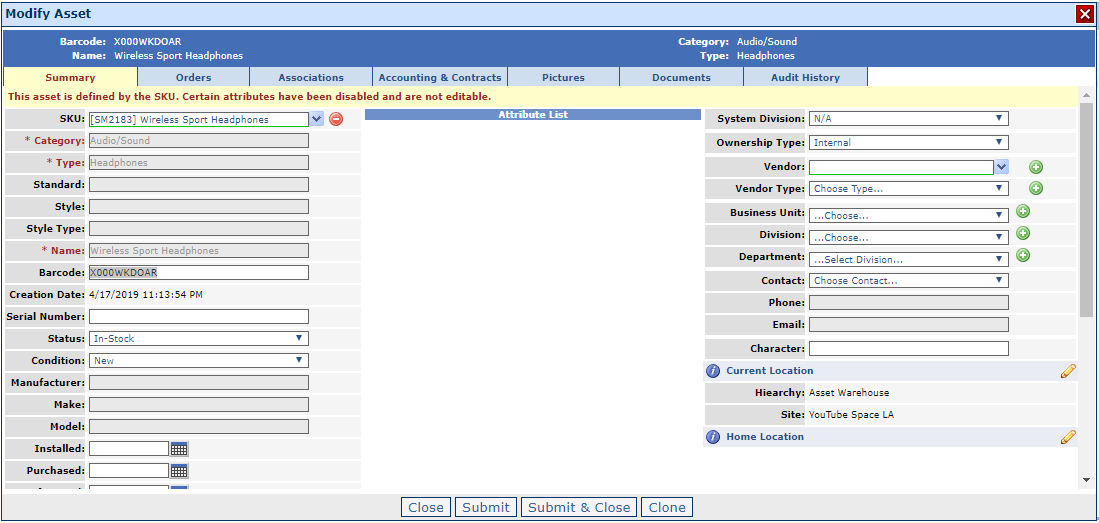
- If you need to make changes to the asset details, be sure to click Submit on each tab to save the changes. You can also make the following changes from the Asset Center page:
- To add a new asset to ShowMgr click the Add New
 button
 - To add multiple assets to ShowMgr click the Add Multiple
 button
 - To clone an asset click the asset you want to clone click the Clone
 button
 - To set the system rate card value for the asset click the Rate Card
 button
 - To delete an asset click the asset you want to delete click the Delete
 button
- To add a new asset to ShowMgr click the Add New
Adding an Asset's Location
- Open up the Asset's details
- Select the pencil icon
 next to Current Location
 - Add in the location details
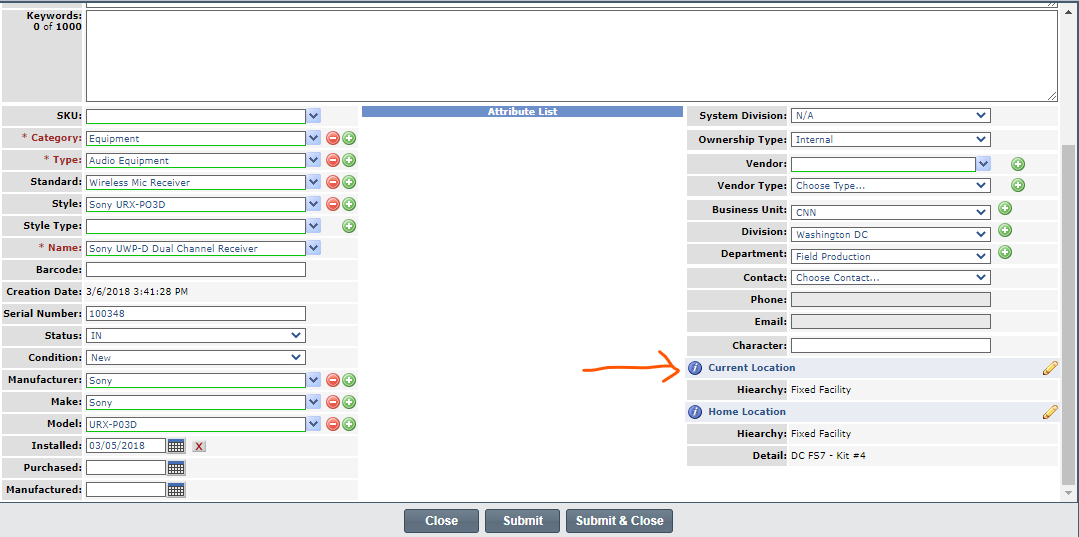
- Select Submit & Close to save your changes and return to the Asset grid
- Once you have added a location, you will be able to use the Asset search filters to find Assets in a specific location