Summary
ShowMgr is compatible with the latest version of Edge and Chrome internet browsers, however Chrome is the preferred platform. This article walks through the steps to use Chrome in full screen in Windows and MacOS so users can maximize the real estate of the screen and get a better user experience. This is especially helpful for heavy users of the Scheduler
The Benefits of Using Chrome Full-Screen
Chrome full-screen mode hides distractions on your desktop, your bookmarks bar, menu buttons, etc. In full-screen mode, Chrome will occupy all the space on the screen.
Enabling Chrome Full-screen Mode in Windows
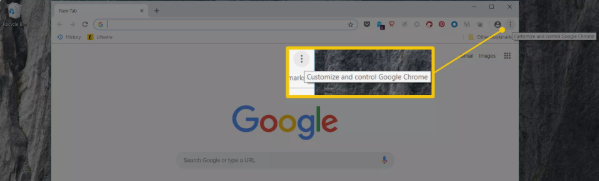
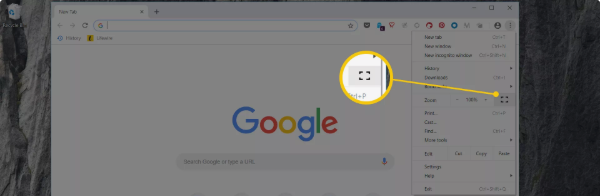
1. On a Windows computer, access the full-screen by clicking on the F11 button OR accessing Chrome's main menu by clicking on the icon with three dots on the upper right hand side
Enabling Chrome Full-screen Mode in MacOS
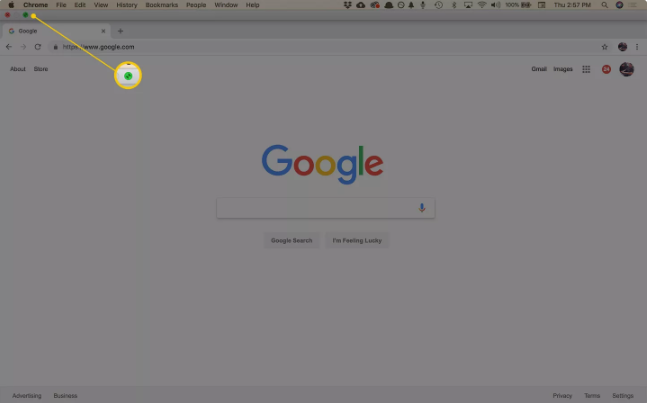
1. For Chrome on macOS, at the top-left corner of Chrome, select the green circle to go to full-screen mode, and select it again to return to the full-size screen