Summary
Within the Order Worksheet it is possible to view and modify timecard entries. This article walks you through the steps to add time worked to a Work Order as well as view and modify existing timecard entries.
Tracking Time within a Work Order
- Open an existing Order and then from the Order Navigation menu, select the Worksheet Tab
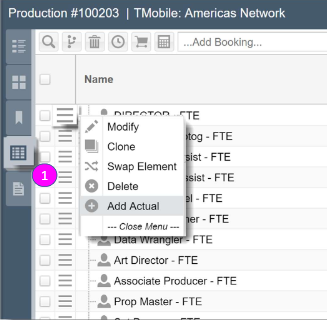
. Select the menu icon
to the left of the Resource to Add Actual time worked by that Resource. Submit to save
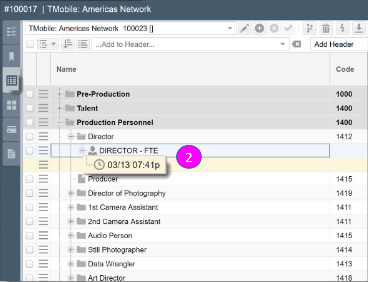
- Once the time is submitted, it will rollup the financials in real-time allowing for immediate tracking of payroll and time worked
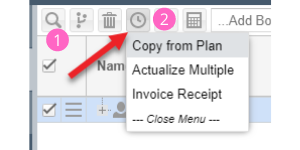
- Add a timecard record by selecting the checkbox on one or more rows
- Click the Clock icon to either:
- Copy from Plan: This will make an exact copy of the Booking. Note: For use cases where the plan and actuals are always the same, this is a quick way to actualize especially if there are many Bookings on the Order
- Actualize Multiple: