
Summary
The Scheduler has various features which include the ability to schedule Resources and Elements and modify your Bookings, Orders, and Projects. This article walks you through how to schedule Resources such as People, Equipment, Space, and Services within the Scheduler
Booking an Element Directly within the Scheduler
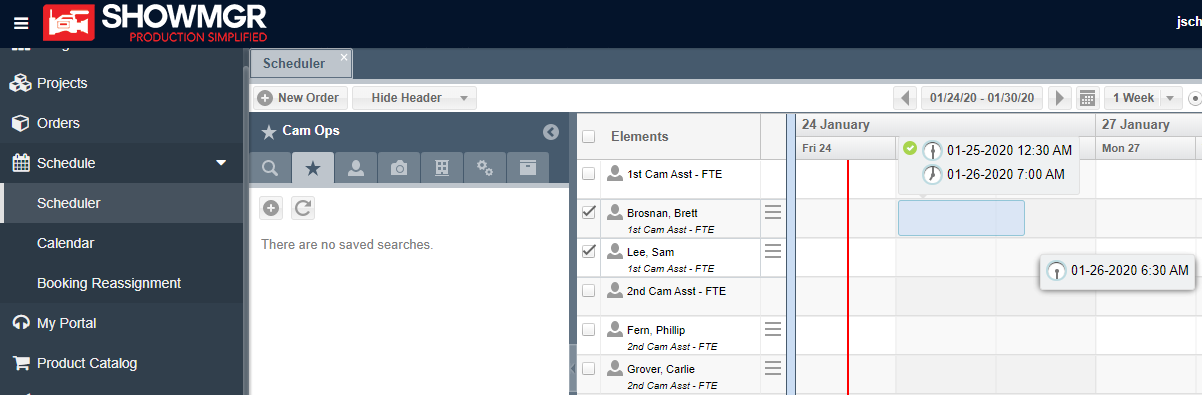
- Select the Schedule Tab on the left hand navigation menu and then select Scheduler
- Next to the Resource/s you would like to book, drag and drop your cursor on the Gantt Schedule to highlight the duration of the Booking and open the New Order pop up
- Select the Order Class from the drop down menu
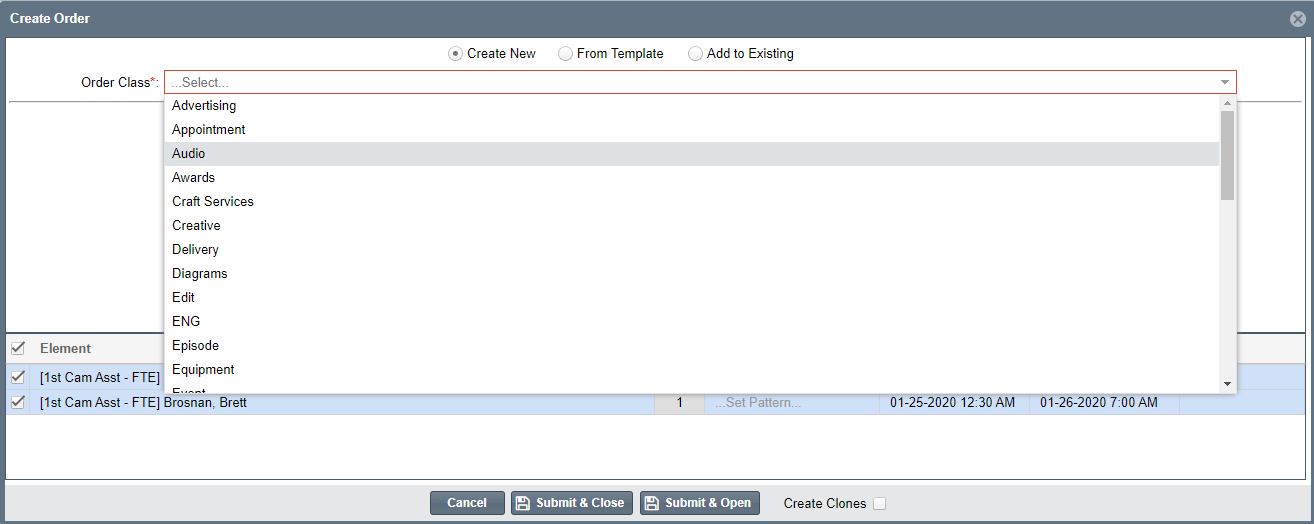
- Fill in all of the required red fields and any other relevant information
- Click Submit & Close to save the entry and return back to the Scheduler
- Please consult the following article on Modifying an Existing Booking in the Scheduler to modify or change any Bookings
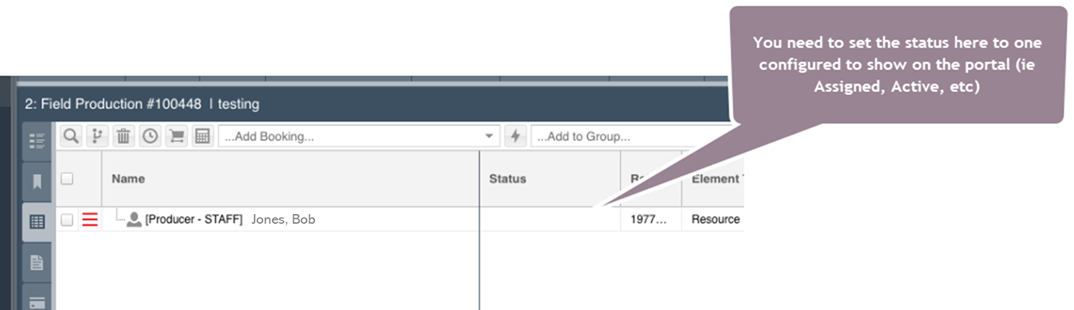
Note: If a Resource's Bookings are not showing up in their Calendar and you know that you have assigned them to Bookings, you need to make sure you set their Resource to a Booking Status that will allow them to see it in their Portal. You can do this from your Order's worksheet under the Status column. Just double-click the empty cell in the line you wish to assign.
Schedule Favorite Elements within the Scheduler
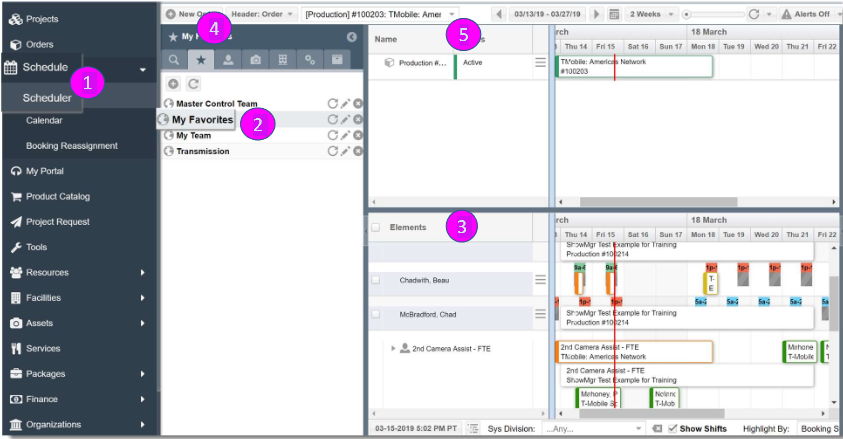
- From the main left-hand navigation menu select the Schedule > Scheduler
- In the My Favorites panel, select the My Favorites saved search
- In this example, the Favorite will display 5 Personnel Positions (Director, Director of Photography, Producer, and 1st and 2nd Camera Assist) in the Elements Grid
- Within the header dropdown, select Header Order
- In the blank dropdown to the right of the header dropdown, select the created Order. This will display the Order in the top portion of the grid. People with the associated position can now be booked to this Work Order by dragging and dropping them into the Order
Find unassigned Element bookings e.g. Resources
- From the main left-hand navigation menu, select Orders
- In the search filters, under Unassigned, select the Element you want to search for e.g. Resources
- Click Search. The grid will now display unassigned bookings related to that Element

Tips for Management: Allocating work with the Scheduler
In order to allocate work to the right resource, it's best to use the Scheduler to see all projects and who is assigned to what project.
You can also compare your Projects in the top Scheduler and your Resources in the bottom Scheduler so you can see what work needs to be done along with who has the availability to do the work (see our article Changing your Scheduler Views for more information). From there you can make the assignments per the steps in this article e.g. drag-drop, assign from the right wing, advanced swap tool.
If you find this view shows a number of scheduling conflicts and makes resources look booked when they aren't actually booked, you can turn off conflict alerts for the Project order class. If you'd like to explore this option, just send our support team a message and they'll be able to make the adjustment on the back end.