Summary
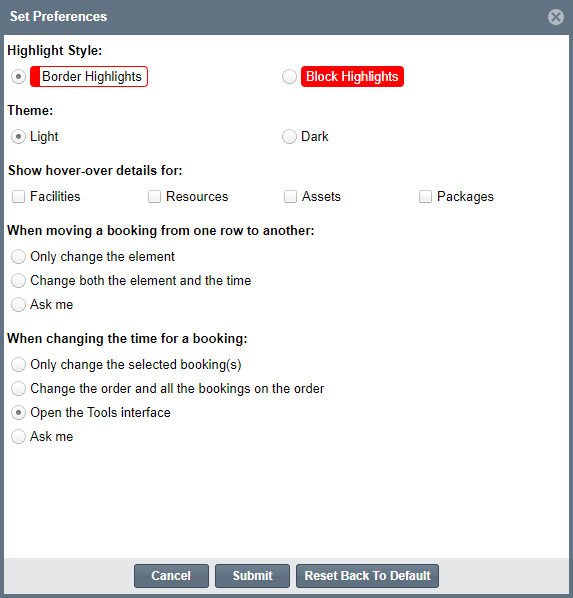
You can customize how you view your Scheduler and how you engage with Orders and Bookings. This article walks you through how to modify your Scheduler preferences.
Navigating to and changing your Scheduler preferences
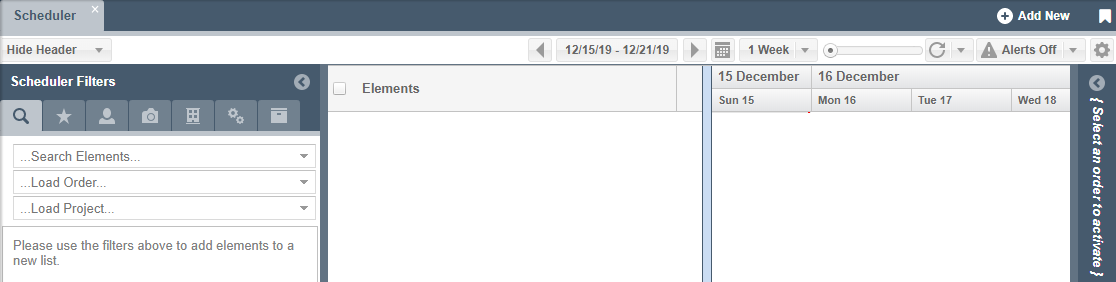
1. From the Scheduler, click on the Preferences  icon on the top right hand side of the screen
2. In the Preferences section you are able to modify the following settings:
- Highlight Style
- Choose how Orders and Elements display in the Scheduler
- Theme
- Choose the Scheduler's color theme. The Light-colored theme is the default color palette for the Scheduler while dark is easier on the eyes for low light rooms
- Show hover over details for
- Choose to see Facility, Resource, Asset and Package details in the Hover-Over window
- When moving a Booking
- Set preferences to provide an ‘ask me’ prompt either before making the change, when only changing the specific Element or when changing both the Element and Time based on the drag and drop
- When changing the time of a Booking
- Will default to “Open the Tools Interface,” or you can choose to change the selected Booking, Order and all Bookings or the ‘ask me’ option