
Summary
This article walks through how to add Resources elements to ShowMgr so they can be added to future Orders, how to modify any existing Resources, as well as steps to merge any duplicate Resource records.
Whether you have an existing project underway or you’re just getting started, you’ll need to add Resources to ShowMgr before you can add them to an Order. To add a new resource:
- Navigate to the Resources > Manage Resources from the ShowMgr navigation menu to open up your Resources dashboard
- Select the New button
 to add a new resource
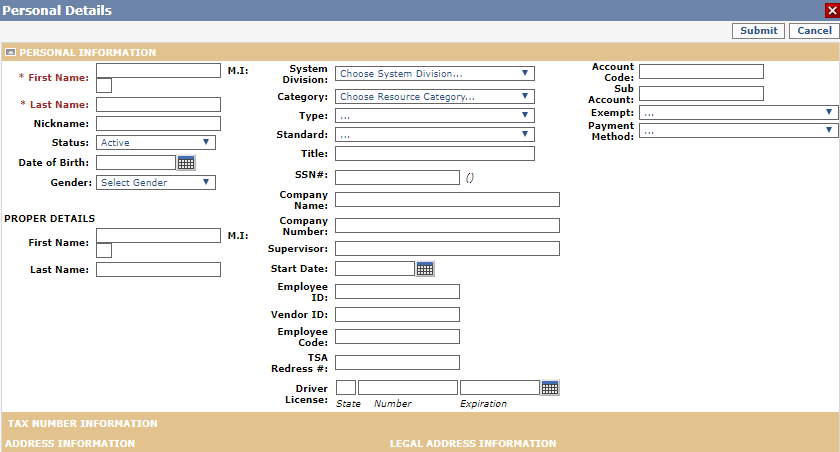
 - Enter in Resource information and select Submit on the upper right hand side of the screen
- To view details about a Resource, in the left-hand navigation menu, select Resource > Manage Resources to open the Manage Resources grid. The Resource Grid contains a list of every Resource that has been set up in ShowMgr
- If you cannot see the Resource you wish to view details for, use the search fields on the left hand side of the grid to refine the list
- When you locate the correct Resource, double-click the Resource to open the Options window
- Click the link for the type of information you wish to view.
Once you have your various Resources loaded into ShowMgr, you can always go back and edit them as you need. To modify an existing Resource:
- From the main left hand navigation menu, click on Resources > Manage Resources to open up the Resources dashboard
- In the Search field, type in your chosen criteria to find your Resource. Click Search
- Double-click the Resource you want to modify
- Select the specific Resource details you want to modify from the left-hand panel
- Select the Modify button
 in the details box to modify the information
 - When you are finished viewing and modifying the Resource details, close the windows by clicking on the red X at the top right corner of each window
- To activate or deactivate a Resource, click On Board Account or Exit Account in the right hand Actions menu
- From the main left hand navigation menu, click on Resources > Manage Resources to open up the Resources dashboard
- Either add a new Resource or open an existing Resource to edit/modify in the Personal Details window
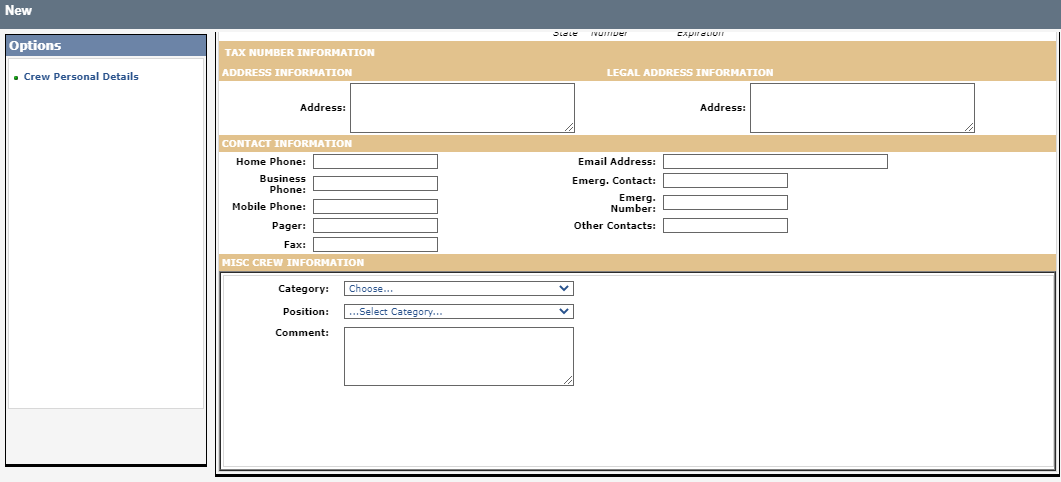
- Scroll to the bottom of the Resource details section to the Misc-Crew Information portion. This area is used to assign the initial Position to the Resource.
- Select the relevant Position Category from the Category drop-down
- Select the relevant Position from the Position drop-down (this menu is determined by the Position Category previously selected
- Click Submit at the top-right of the Personal Details window to save before closing the window
If you find duplicate resource records in your system (i.e. the same person has more than one record), you'll need to merge them. When resource records are merged, they will still retain past, present, and future bookings.
Unfortunately merging resources can only be done from the system's back end. If you need to merge resources, please submit a request to our Support Team with details/screenshots of the records that need to be merged and we'll do it as quickly as we can!