Summary
The Saved Searches functionality in ShowMgr is used throughout the tool to make it easier to find and manage Projects, Orders, Elements, Billing Transactions, Product Catalogs, Master Projects Bids and more. This article walks you through the search parameters, conducting a search, saving a search, search filters, and creating favorites
Search parameters and conducting a search
Search parameters depends on what type of search the user is executing. For example, Order parameters are different from Project parameters
- Navigate to the ShowMgr Menu located on the Left Navigation Panel and click on the Activity of interest
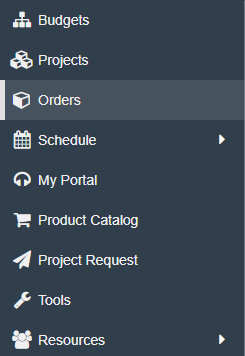
- Most, but not all Activities with save search functionality will show a Search Filters panel. The Search Filters will vary depending on the parameters relevant to the functionality in use
- To search, apply your chosen Search Filters e.g. Status, Class, Start Date, System Division, etc. Click Search to load the results
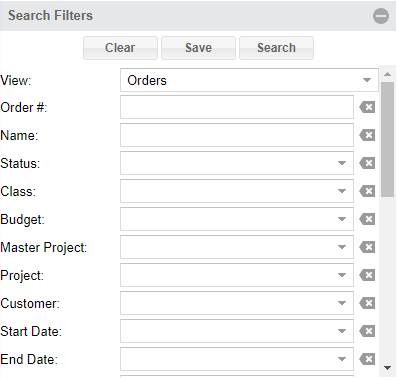
- Some Search Filters allow for multiple inputs, so when doing successive searches, be sure to double check Search Filters before initiating a new search
- To save your search, add a name in the Save As box and click the Save icon. Your search will be saved and loaded into the Saved Searches section for recall
- To load your saved search results into the Grid, just double-click on the name in the Saved Searches list
Creating saved searches in the Scheduler
Creating saved searches in the Scheduler allows users to create saved searches of Resources, Assets, Facilities, Services or Packages, and display them in the Scheduler.
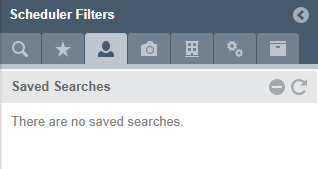
Creating saved searches in the Order Grid to apply to the Scheduler
- Navigate to Orders to load the Order Grid. Click on Saved Searches to use to the search parameters to create saved searches looking for Orders related to a common identifier. In this example, it is based on a Show Series. Click Save to save your search
- Open up the Scheduler where you can open a split screen to look at all Orders based on that common search filter. Utilize the Order Search option in the dropdown to display the Saved Search in the Order Grid
- All items related to that search will now display in the Gantt chart. You can right click any of the blocks to see any information related to the Order
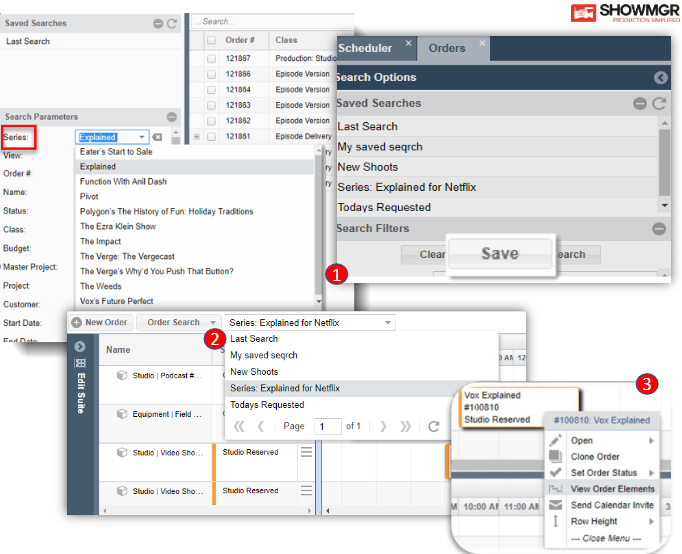
Opening Saved Searches
To load your saved search results into the grid, just double-click on the name in the Saved Searches list
Create Favorites from saved Element searches
Once saved searches are created, they are available in the Favorites creation window. Users can combine saved Element Searches into Favorites
- Every time a Search is saved, it will show up in the Saved Searches list of its respective Elements Tab
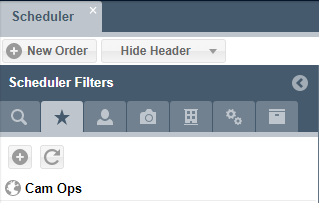
- Click the Favorites Tab on the top Navigation Bar
- Click the plus sign (+) to open the New Favorite window
- Enter a name for your new Favorite
- Choose from your list of Saved Searches by clicking the Add Search dropdown
- Click the plus sign (+) to add a Saved Search Element to the Favorite's list of Elements
- The list of Elements can be reordered as needed, by clicking and dragging the Element to its desired location
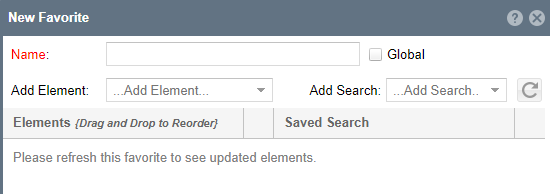
- Click the Submit button to save the Favorite and close the New Favorite window by clicking on the (x) on the upper right hand corner of the window