Summary
ShowMgr considers Asset elements to be the equipment, tools, or objects which can be booked for an Order. This article walks through how to add an Asset element by SKU to ShowMgr so they can be added to a future Order.
Introducing Assets and SKUs
Asset elements are the equipment, tools, or objects which can be booked for an Order. In the ShowMgr system, SKUs represent a model of an object/tool with specific attributes, while Assets are the actual physical objects attached to each SKU. There are two types of SKUs:
Serialized SKUs: These SKUs have been created for Assets which have unique serial numbers. Each SKU may have notable individual attributes unique to the physical Asset itself, rather than every Asset of that SKU. There is a separate record for each Asset based on a Serialized SKU.
Non-serialized SKUs: These SKUs have been created for Assets that do not have any notable individual attributes unique to the physical Asset itself. For example, AUX Cables, especially in high quantities, do not have notable differences. There is usually a single record for a quantity of Non-serialized Assets.
Adding an Asset
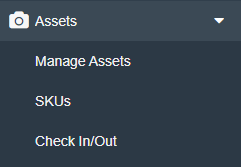
1. Login to ShowMgr. Under Navigation, click on Assets > SKUs
2. Under the SKUs tab, click on the  button in the top menu bar to add a new SKU
button in the top menu bar to add a new SKU 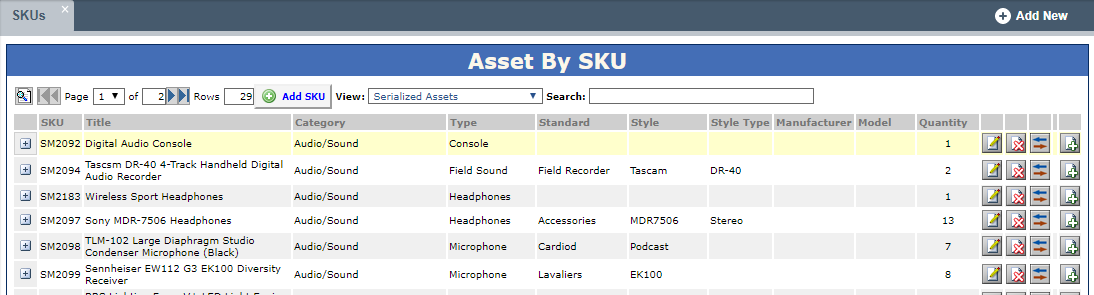
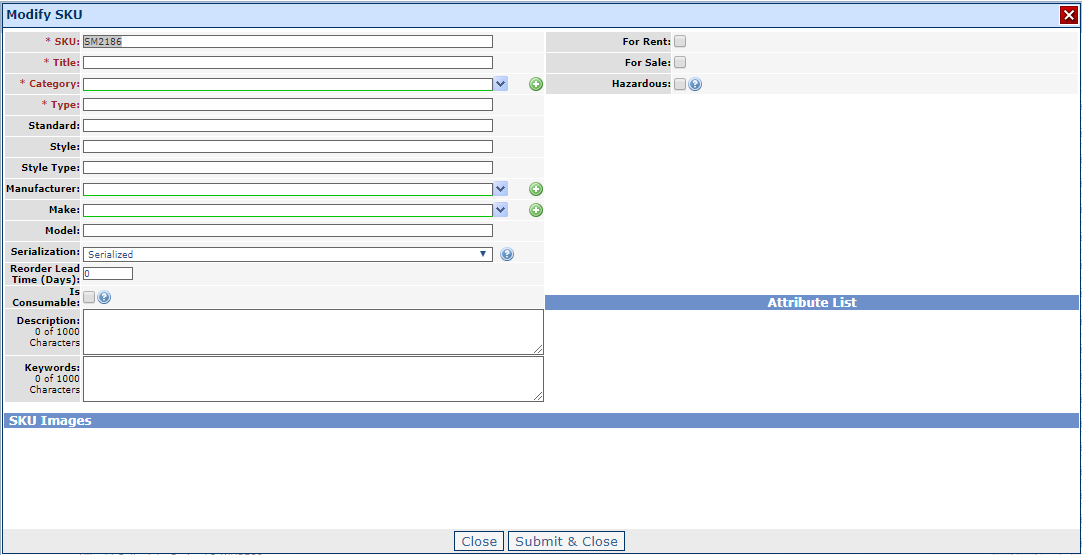
4. Enter in all available and relevant information to the SKU in the Modify SKU pop up (noting some fields are required while others are optional). Click Submit & Close when finished to save your changes
Required Fields
- SKU: Enter the SKU ID here. If you intend to use a barcode scanner to scan a SKU, this is the number that should appear on the barcode
- Title: Enter the product name here
- Category: Select the Category in which this product belongs
- Type: Select the Type in which this product belongs
Optional Fields
- Standard: Select the Standard in which this product belongs, if any
- Style: Select the Style in which this product belongs, if any
- Style Type: Select the Style Type in which this product belongs, if any
- Manufacturer: Enter the Manufacturer of the product
- Make: Enter the Make of the product
- Model: Enter the Model of the product
- Serialization: Indicate with the SKU will represent Serialized Assets or Non-serialized Assets. Serialized Assets represent individual uniquely identified assets in your inventory with only one record per physical item. Non-serialized Assets have one record for all physical items and are saved as a quantity value that can be adjusted by you. Note: Be sure to select the Serialization correctly for this SKU as this determines how the Assets are stored in ShowMgr, which may be irreversible.