
Summary
This article will walk you through the necessary steps for signing into your instance of ShowMgr.
Logging into ShowMgr Web
- Navigate to your instance of ShowMgr web yourcompany.showmgr.com (replacing "yourcompany" with your company's name)
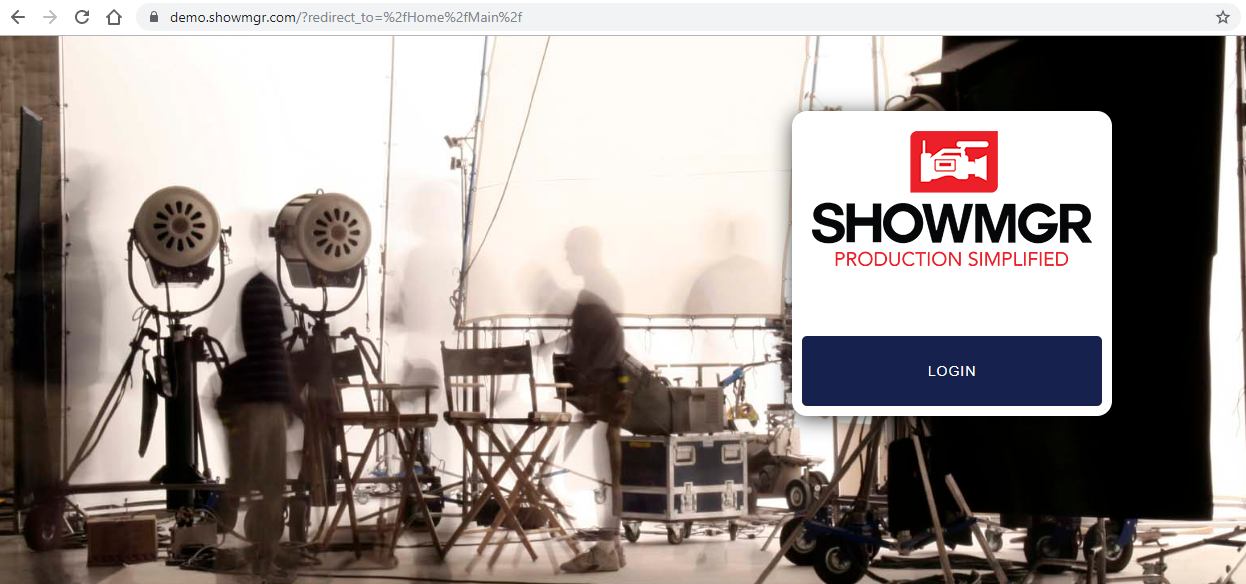
- Select Login
- Select Login with Google (or your company's preferred enterprise single sign-on solution)

- Enter your Google (or other single sign-on) credentials. You should see a User Authorization Request Form pop up
- Fill in your desired ShowMgr User Account information. For the Access Key, enter the Access Key given to you by either the ShowMgr team or your company's administration team and click Submit
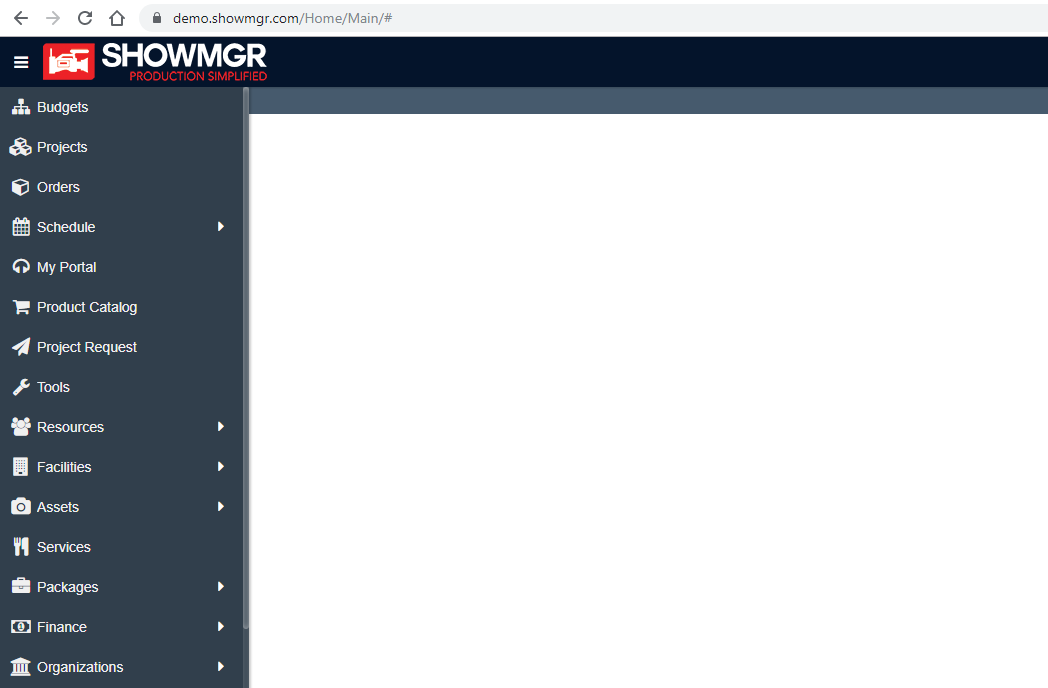
- You will then be taken to the main ShowMgr navigation page where you can start to add Elements, create Orders, and much more...
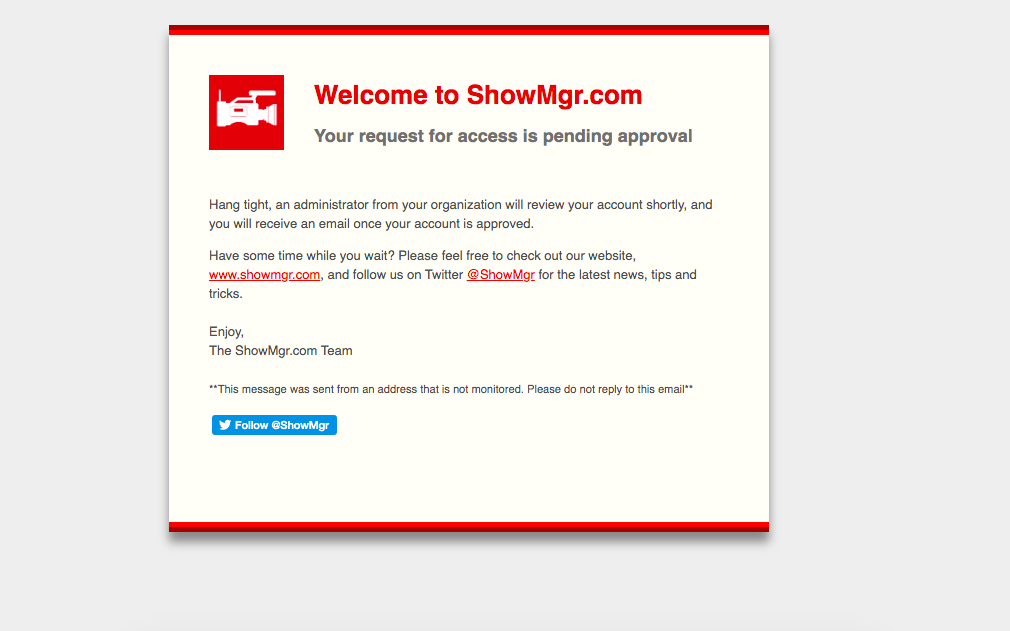
- Alternatively, you may be asked to wait for approval, depending on your access key. Please have a team-member from your company's administration team approve your request. Note: In some cases you may be continuously referred to an email validation page. If this is the case, try logging in with your company's enterprise login information. Sometimes users mistakenly log in with a social account which has not been approved by their admin team.
Logging Out of ShowMgr
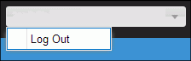
To log off from ShowMgr, click the down arrow adjacent to the active user in the upper-right corner of the screen, then click Log Out
Troubleshooting- Trouble Logging In
If you're having trouble logging into ShowMgr check your credentials with your system administrator. They may need to reset your password or reauthorize your access code.
If your credentials and access code are correct, try clearing your browser cache.
If using Chrome, you can clear cache by getting access to history from your browser menu options in the top right hand corner ( ). Once cleared, try and log in again. If you continue to have issues, please contact our support team.
Troubleshooting - Not showing any orders or bookings
If you or one of your users cannot see any orders or bookings within their ShowMgr instance, it's likely they do not have a Position tied to their Resource profile. Once you assign them a Position and then to an Order they should be able to see information within their instance.